Developer Guide
- Introduction
- Acknowledgements
- Setting up, getting started
- Design
- Implementation
- Documentation, logging, testing, configuration, dev-ops
-
Appendix: Requirements
- Product scope
- User stories
-
Use cases
- Use case: UC01 - Add Contact
- Use case: UC02 - Delete Contact
- Use case: UC03 - Edit Contact
- Use case: UC04 - Add a remark
- Use case: UC05 - Find Contact by name
- Use case: UC06 - List Contacts
- Use case: UC07 - Add Appointment
- Use case: UC08 - Delete Appointment
- Use case: UC09 - Edit Appointment
- Use case: UC10 - Mark Appointment
- Use case: UC11 - Unmark Appointment
- Use case: UC12 - Sort contacts
- Use case: UC13 - Find Contact by priority
- Use case: UC14 - Find Contact by tag
- Use case: UC15 - Find Contact by remark
- Use case: UC16 - Help command
- Use case: UC17 - Statistics window
- Use case: UC18 - Edit tags of a contact
- Non-Functional Requirements
- Glossary
- Appendix: Instructions for manual testing
Introduction
Financial Advisor Smart Tracker (FAST), is a free and open-source desktop app for Financial Advisors to manage their contacts. FAST is optimized for those who prefer to work with a Command Line Interface (CLI) while still having the benefits of a Graphical User Interface (GUI).
This document is a Developer Guide written to help developers who wish to understand more about the design and implementation of FAST. It explains the internal structure of FAST and how the different components in FAST work together to execute the different commands. We hope that this Developer Guide will help any developers who wish to contribute to FAST to have a better understanding of FAST.
Acknowledgements
- Adds the counts to the labels of the PieChart.
- Adapted from: https://stackoverflow.com/questions/35479375/display-additional-values-in-pie-chart
- Credit: jewelsea
Setting up, getting started
Refer to the guide Setting up and getting started.
Design
In this section, you will learn more about the design and structure of FAST.
 Tip: The
 .puml files used to create diagrams in this document can be found in the diagrams folder. Refer to the PlantUML Tutorial at se-edu/guides to learn how to create and edit diagrams.
Architecture
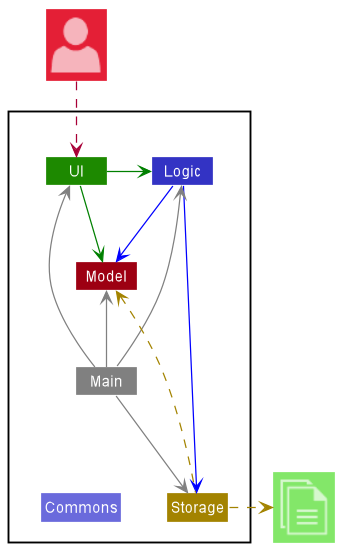
Figure 1: Architecture Diagram of FAST
FAST is developed and built upon AddressBook3. We have decided to keep the 6 components used in AddressBook3 while modifying and enhancing each component to fit the needs of FAST. The Architecture diagram given above explains the high-level design of FAST.
Given below is a quick overview of the main components and how they interact with each other.
Main components of the architecture
There are 6 major components of FAST:
-
Mainhas two classes calledMainandMainApp. It is responsible for,- At app launch: Initializes the components in the correct sequence, and connects them up with each other.
- At shut down: Shuts down the components and invokes cleanup methods where necessary.
-
Commons: A collection of classes used by multiple other components. -
UI: The UI of FAST. -
Logic: The command executor. -
Model: Holds the data of FAST in memory. -
Storage: Reads data from, and writes data to, the hard disk.
Each of the four main components(labelled 3-6) (also shown in the diagram above),
- defines its API in an
interfacewith the same name as the Component. - implements its functionality using a concrete
{Component Name}Managerclass (which follows the corresponding APIinterfacementioned in the previous point).
For example, the Logic component defines its API in the Logic.java interface and implements its functionality
using the LogicManager.java class which follows the Logic interface.
Other components interact with a given component through its interface rather than the concrete class
(reason: to prevent outside component’s being coupled to the implementation of a component), as illustrated in the (partial) class diagram below.
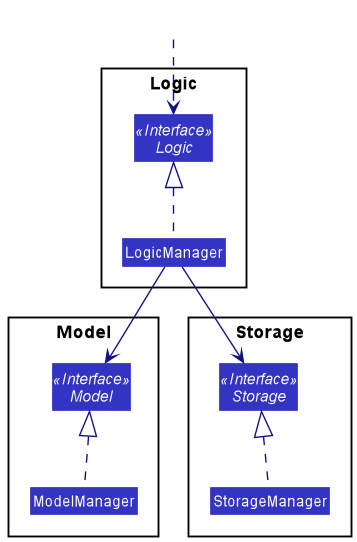
Figure 2: Components Managers of FAST
How the architecture components interact with each other
The Sequence Diagram below shows how the components interact with each other for the scenario where the user issues the command delete 1.
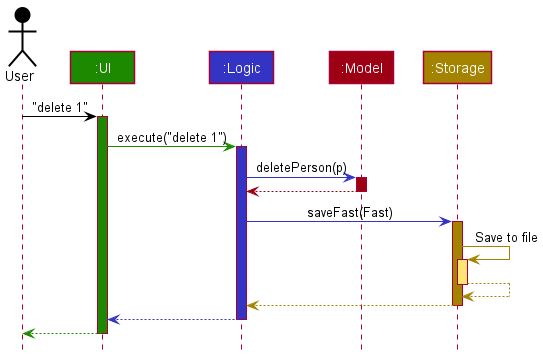
Figure 3: Architecture Sequence Diagram of FAST
The sections below give more details of each component.
UI component
This section will explain the structure of the UI component.
API: Ui.java
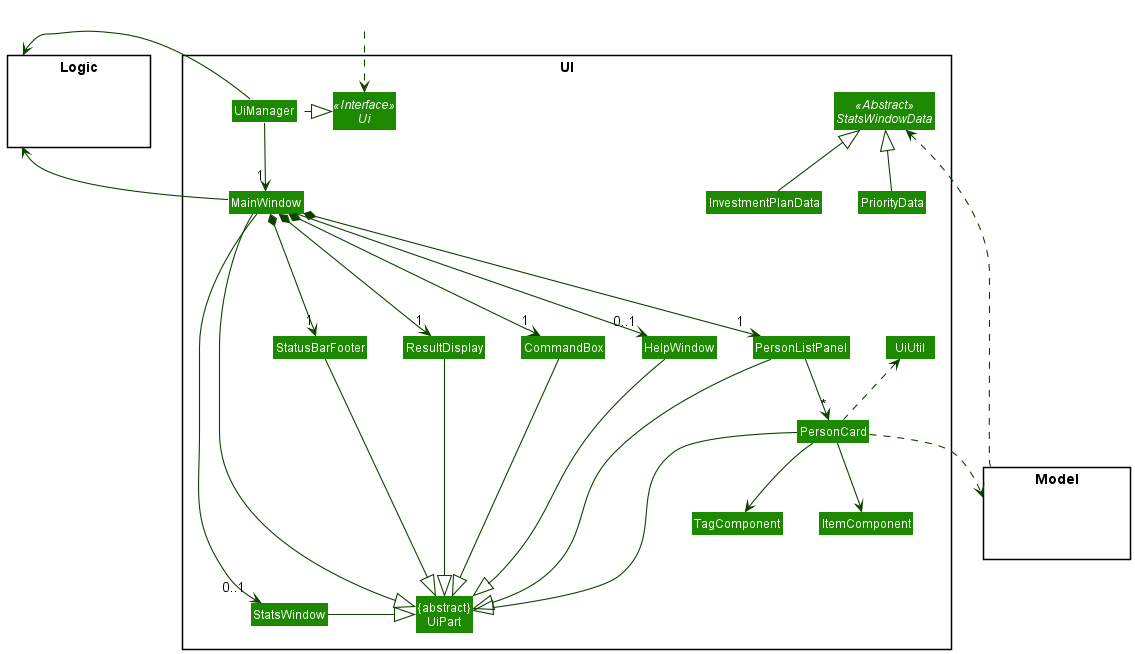
Figure 4: UI Class Diagram of FAST
Our UI component uses the JavaFx UI framework.
The layout of these UI parts are defined in matching .fxml files that are in the src/main/resources/view folder.
The UI consists of a MainWindow that is made up of parts such as:
CommandBoxResultDisplayPersonListPanelPersonComponentTagComponentStatusBarFooterHelpWindowStatsWindow
All these, including the MainWindow, inherit from the abstract UiPart class which captures the commonalities between classes that represent parts of the visible GUI.
The UI component,
- executes user commands using the
Logiccomponent. - listens for changes to
Modeldata so that the UI can be updated with the modified data. - keeps a reference to the
Logiccomponent, because theUIrelies on theLogicto execute commands. - depends on some classes in the
Modelcomponent, as it displaysPersonobject residing in theModel.
The PersonCard class will create new ItemComponent and TagComponent that will help to add and load the icons used in FAST.
The StatsWindow will display a pie chart, and a brief analysis message.
The data used in the pie chart are obtained from the ‘Person’ object residing in the Model component, which is obtained from StatsWindowData.
Logic component
This section will explain the structure of the Logic component.
API: Logic.java
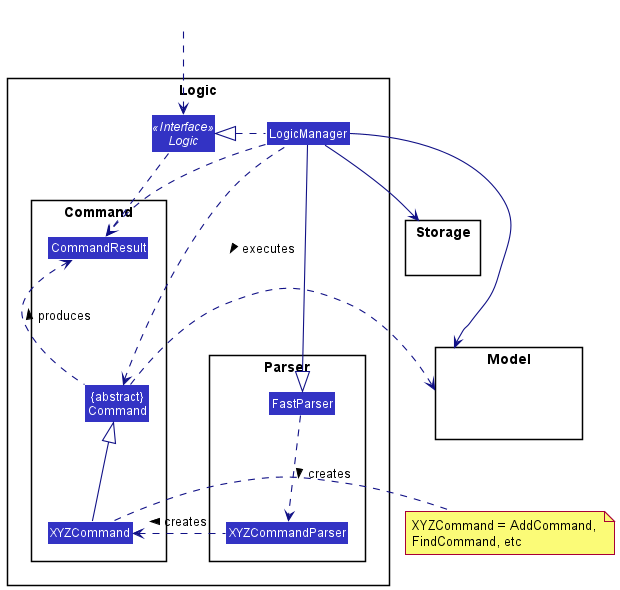
Figure 5: Logic Class Diagram of FAST
Here are the other classes in Logic (omitted from Figure 5 above):
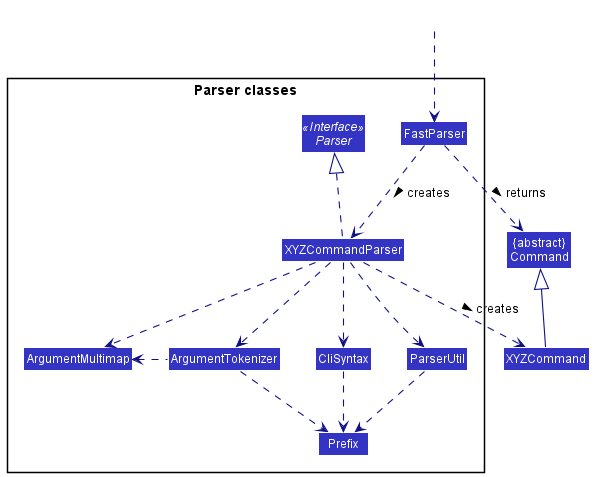
Figure 6: Parser Class Diagram of FAST
How the Logic component works:
- When
Logicis called upon to execute a command, it uses theFastParserclass to parse the user input. - The
FastParserwill create a specificXYZCommandParserobject to parse the arguments for theXYZcommand. - The
XYZCommandParserwill create theXYZCommandobject. - This results in a
Commandobject which is executed by theLogicManager. - The
Commandobject can communicate with theModeland updateStoragewhen it is executed (e.g. to add a client). - The result of the command execution is encapsulated as a
CommandResultobject which is returned fromLogicManager.
How the parsing works:
- When called upon to parse a user command, the
FastParserclass creates anXYZCommandParserwhich uses the other classes shown above to parse the user command and create aXYZCommandobject which theFastParserreturns back as aCommandobject. - All
XYZCommandParserclasses inherit from theParserinterface so that they can be treated similarly where possible e.g, during testing.
The Sequence Diagram below illustrates the interactions within the Logic component for the execute("delete 1") API call.
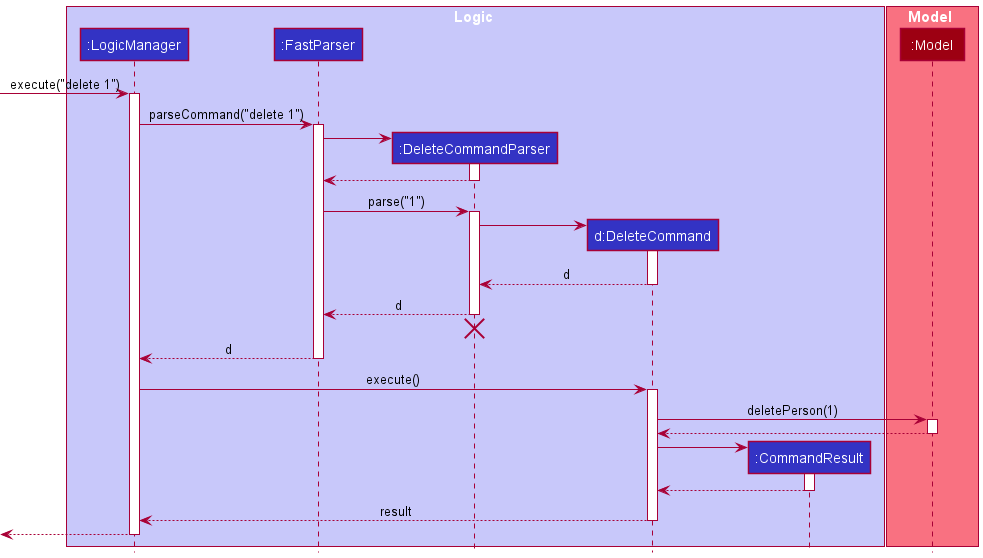
Figure 7: Logic Sequence Diagram of FAST (Delete Command)
 Note: The lifeline for
 DeleteCommandParser should end at the destroy marker (X) but due to a limitation of PlantUML, the lifeline reaches the end of diagram.
Model component
This section will explain the structure of the Model component.
API: Model.java
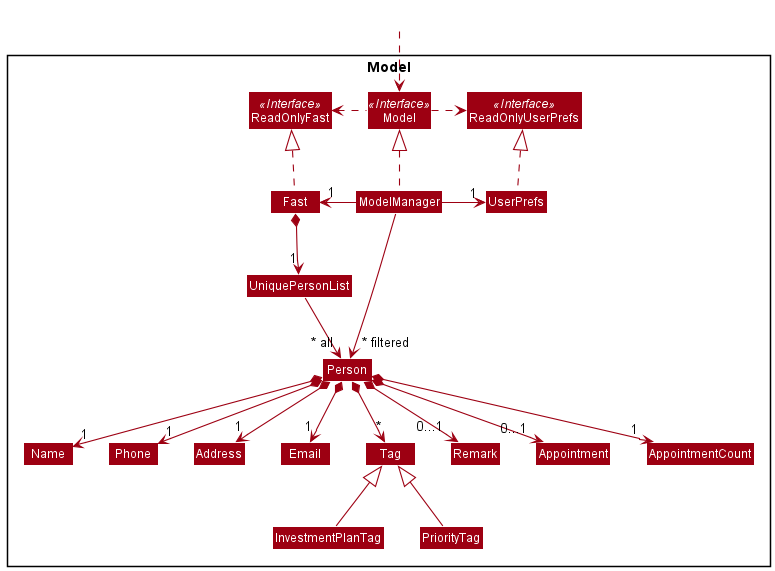
Figure 8: Model Class Diagram of FAST
The Model component,
- stores Fast data, i.e. all
Personobjects (which are contained in aUniquePersonListobject). - stores the currently ‘selected’
Personobjects (e.g., results of a search query) as a separate filtered list which is exposed to outsiders as an unmodifiableObservableList<Person>that can be ‘observed’ e.g. the UI can be bound to this list so that the UI automatically updates when the data in the list change. - stores a
UserPrefobject that represents the user’s preferences. This is exposed to the outside as aReadOnlyUserPrefobjects. - does not depend on any of the other three components (as the
Modelrepresents data entities of the domain, they should make sense on their own without depending on other components)
Storage component
This section will explain the structure of the Storage component.
API: Storage.java
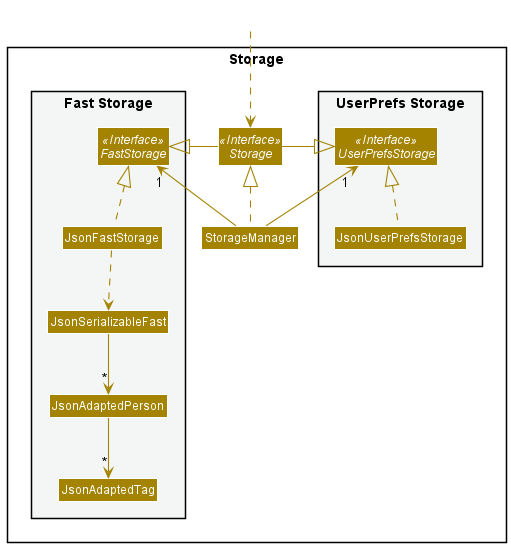
Figure 9: Storage Class Diagram of FAST
The Storage component,
- can save both Fast data and user preference data in json format, and read them back into corresponding objects.
- inherits from both
FastStorageandUserPrefStorage, which means it can be treated as either one (if only the functionality of only one is needed). - depends on some classes in the
Modelcomponent (because theStoragecomponent’s job is to save/retrieve objects that belong to theModel)
Common classes
Classes used by multiple components are in the seedu.fast.commons package.
Implementation
This section describes some noteworthy details on how certain features are implemented.
Appointment feature
Current Implementation
Currently, the appointment feature supports 5 different type of command:
add appointmentedit appointmentdelete appointmentmark appointmentunmark appointment
This 5 features will allow users to be able to manage the appointments they have with their clients.
All 5 features extends from the abstract Command class.
These 5 features help clients to manage their appointment by manipulating the Appointment and the AppointmentCount class.
add appointment, edit appointment and delete appointment functions similarly to the features add, edit and delete respectively.
The table below summarises the purpose of the 5 different appointment commands.
| Command | Command Word | Purpose |
|---|---|---|
add appointment |
aa |
Adds a new appointment. |
edit appointment |
ea |
Edits an existing appointment. |
delete appointment |
da |
Delete an existing appointment. |
mark appointment |
ma |
Mark an appointment as done. |
unmark appointment |
ua |
Undo the marking of an appointment as done. |
Appointment
Managed by: Appointment.java
This class contains the details of the appointment with a specific client.
Data stored in an Appointment object:
1) The date of an appointment in dd-MMM-yyyy format as a String.
2) The time of an appointment in HHmm format as a String.
3) The venue of an appointment has to be within 20 characters as a String.
Appointment Count
Managed by: AppointmentCount.java
This class contains the number of completed / marked appointment with a specific client.
Data stored in an AppointmentCount object:
1) count (number) of completed appointment as an int.
Add Appointment
Managed by: AppointmentCommand.java
and AppointmentCommandParser.java
Add apppointment requires the user to input 4 fields (index, date, time and venue),
of which only 2 (index and date) are compulsory for FAST to be able to execute the command.
Add appointment requires the date to be of the format yyyy-mm-dd and time to be of the format HH:mm.
Additionally, the date entered by the user must be a date in the future (i.e. cannot be a date in the past).
If the date and/or time input does not follow the required format, Fast will display an error message to the user.
AppointmentCommandParser::parse() makes use of ParserUtil::parseDateString() and ParserUtil::parseTimeString() to check if the input date and time follows the format.
If the input date and time passes the check, ParserUtil::parseDateString() and ParserUtil::parseTimeString() will then format the date and time to be dd-MMM-yyyy and HHmm respectively.
The new Appointment object created by AppointmentCommandParser::parse() will receive the formatted date and time as its parameter.
Add appointment prevents the user from adding another appointment if an appointment already exist for the specified user.
AppointmentCommand::execute() checks if the current Appointment is an empty appointment and only allows the AppointmentCommand to be executed if it is true.
Edit Appointment
Managed by: EditAppointmentCommand.java
and EditAppointmentCommandParser.java
Edit Appointment function similar to Add Appointment except that date field is no longer compulsory.
The EditAppointmentDescriptor is included to help to duplicate and transfer over existing data that are not edited by the ea command.
EditAppointmentCommandParser::parse() makes use of EditAppointmentDescriptor::isAnyFieldEmpty() to ensure that at least one of the 3 fields (excluding index) is entered.
Edit Appointment prevents user from editing an appointment if an appointment does not exist yet. It uses the same mechanism as add appointment to do the check except that this time,
the EditAppointmentCommand will execute if the current Appointment does not equal to an empty appointment.
Delete Appointment
Managed by: DeleteAppointmentCommand.java
and DeleteAppointmentCommandParser.java
Delete appointment only requires the user to specify the index parameter.
It deletes an appointment by creating a new Appointment object with empty date, time and venue to replace the current Appointment object.
The new Appointment object is created in DeleteAppointmentCommandParser::parse().
Delete Appointment prevents user from deleting an appointment if an appointment does not exist yet. It uses the same mechanism as edit appointment to do the check.
Mark Appointment
Managed by: MarkAppointmentCommand.java
and MarkAppointmentCommandParser.java
Similar to Delete Appointment, Mark Appointment only requires the user to specify the index parameter.
Mark Appointment prevents user from marking an appointment if an appointment does not exist yet. It uses the same mechanism as edit appointment to do the check.
If it passes the check, MarkAppointment::execute() will make use of AppointmentCount::incrementAppointmentCount() to increase the count by 1.
The existing Appointment object will be replaced by a new Appointment object with an empty date, time and venue.
The new Appointment object is created in MarkAppointmentCommandParser::parse().
Unmark Appointment
Managed by: UnmarkAppointmentCommand.java
and UnmarkAppointmentCommandParser.java
Similar to Delete Appointment, Unmark Appointment only requires the user to specify the index parameter.
Unmark Appointment prevents user from marking an appointment if an appointment already exist. It uses the same mechanism as add appointment to do the check.
If it passes the check, UnmarkAppointment::execute() will make use of AppointmentCount::decrementAppointmentCount() to decrease the count by 1.
Usage Scenario
1) The user launches the application for the first time and wants to add an appointment to a client in FAST.
For example, the user input this command: aa 1 d/2022-10-11 t/10:00 v/NUS
The initial state of the Appointment object present in the specified client Person object before the command is executed is shown below:
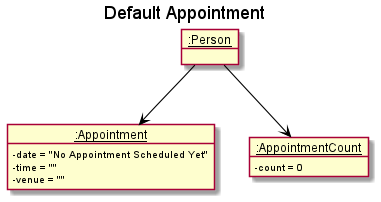
Figure 10: Default State of Appointment (Object Diagram) of FAST
2) LogicManager::execute() will be called which will in turn calls FastParser::parseCommand() to parse the given input.
FastParser::parseCommand() will determine that it is an add appointment command which will then call AppointmentCommandParser::parse().
3) Inside AppointmentCommandParser::parse():
-
ArgumentTokenizer::tokenize()will be called to recognise the required prefixes for appointment feature. -
ParserUtil::parseIndex(),ParserUtil::parseDateString(),ParserUtil::parseTimeString()andAddAppointmentCommandParser::checkVenue()will be called to check and parse the input if it passes the check (for requirement). -
A new
Appointmentobject with the inputdate,timeandvenuewill be created as shown in the diagram below.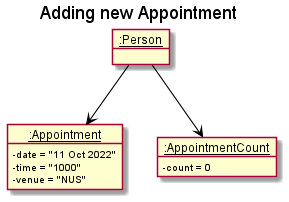
Figure 11: Added State of Appointment (Object Diagram) of FAST
4) AppointmentCommandParser::parse() will return a new AppointmentCommand object that contains the index of the
specified client and the new Appointment object.
5)LogicManager then calls the method AppointmentCommand::execute(), which will attempt to add the new Appointment
after verifying that no appointments had been created for the specified contact yet.
6) Inside AppointmentCommand::execute():
-
Model::setPersonwill be called to update the contact details in the model. -
AppointmentCommand::generateSuccessMessagewill be called to generate the message to be displayed. - Message and changes will be reflected afterwards.
The sequence diagram below illustrates step 2 to step 6.
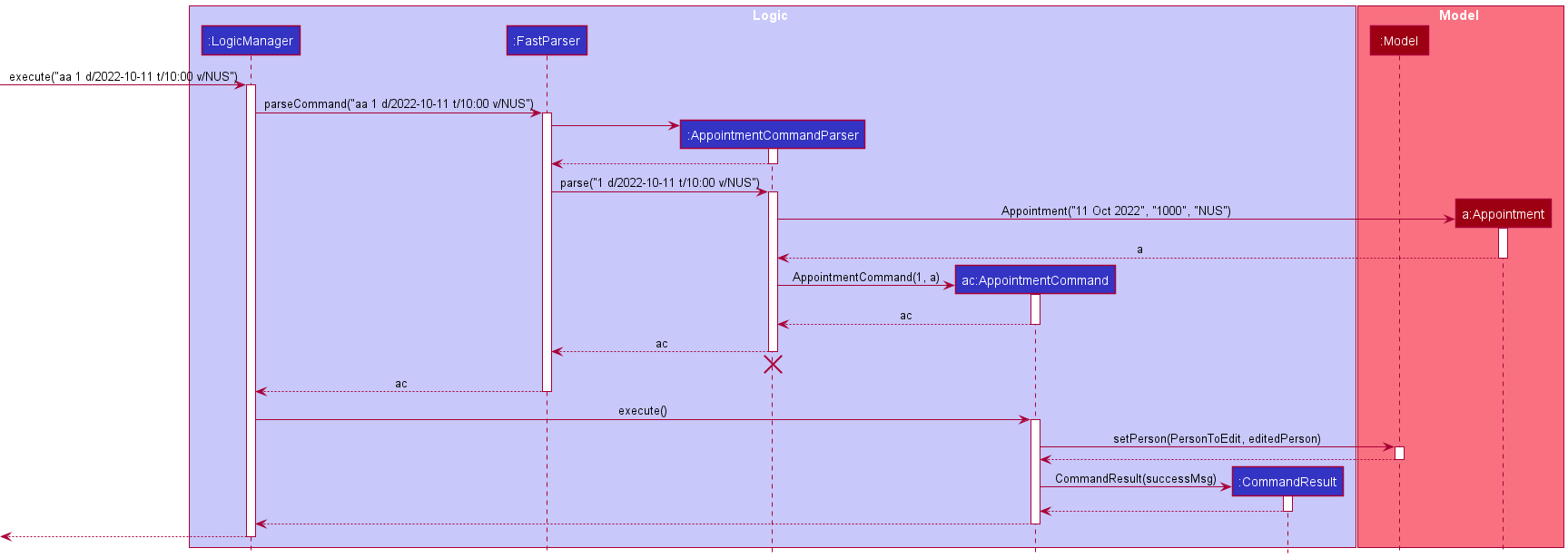
Figure 12: Appointment Sequence Diagram of FAST
7) Suppose that the user makes a mistake in the date of the appointment, and he wants to change it.
Example: ea 1 d/2022-05-15
8) Similar course of actions mentioned to step 2 to step 6 will occur except that this time it involves the EditAppointmentCommand class and EditAppointmentCommandParser class instead.
The diagram below shows the updated object diagram after the ea command is executed.
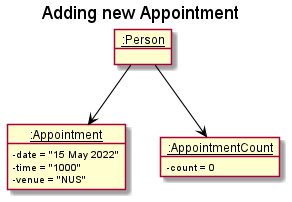
Figure 13: Edited State of Appointment (Object Diagram) of FAST
9a) Suppose that the user cancels the appointment and wants to delete it using the command da 1.
Similar course of actions mentioned to step 2 to step 6 will occur except that this time it involves the DeleteAppointmentCommand class and DeleteAppointmentCommandParser class instead.
The update object diagram will be reverted to the initial state (as shown in step 3).
9b) Suppose that the user did not delete the appointment. Instead, he wants to mark the appointment using the command ma 1.
A similar course of action mentioned to step 2 to step 6 will occur, except that in this case it involves the MarkAppointmentCommand class and MarkAppointmentCommandParser class instead.
The diagram below shows the updated object diagram.
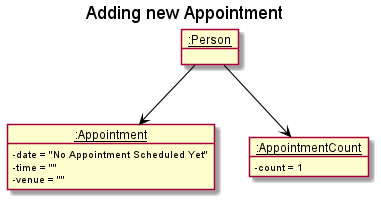
Figure 14: Marked State of Appointment (Object Diagram) of FAST
10) Finally, suppose that the user marks the appointment (in step 9b) by accident and wants to unmark it using ua 1.
Similar course of actions mentioned to step 2 to step 6 will occur except that this time it involves the UnmarkAppointmentCommand class and UnmarkAppointmentCommandParser class instead.
The update object diagram will reflect the changes in the AppointmentCount object (decrementing count by 1), and in this case it will be similar to the object diagram shown in step 3 (since the count is 1 as shown in the diagram in step 9b).
Given below is Activity Diagram for FAST Appointment procedure. It includes scenarios that are not mentioned in step 1 to step 10 above.
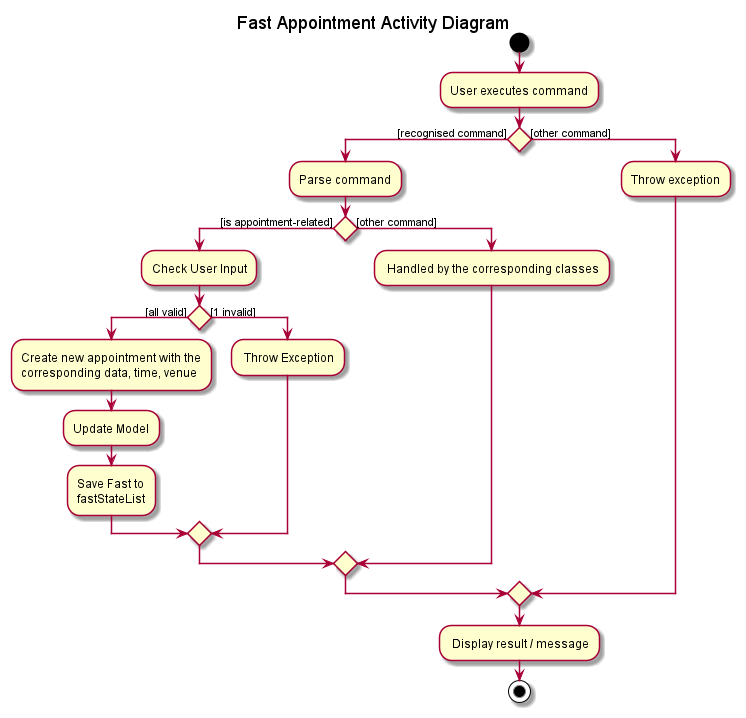
Figure 15: Appointment Activity Diagram of FAST
Design Considerations
Aspect: How the application feature is implemented
-
Alternative 1 (current choice): Divide the appointment features into 5 sub-features.
- Pros:
- Isolation of a single sub-feature to a specific command: more intuitive to use.
- Reduces coupling. One Appointment command class handles one type of operation.
- Improvement for the command syntax. Less prefixes required.
- Improvement over
edit appointmentcommand: retains data fields not directly affected by the command.
- Cons:
- More classes added, resulting in more lines of codes in the program.
- More checks and testcases needed.
- May have some very similar codes.
- Pros:
-
Alternative 2: Combine all 5 sub-features into one appointment command.
- Pros:
- Reduce the number of commands in the application: less to manage, easier to remember.
- Cons:
- More prefixes required, more complex syntax: less intuitive to use.
- Less abstraction, more coupling and more bug-prone: The same command class and parser class will handle all the four different feature.
- Unnecessary code would be executed to check for the type of sub-features is called in the parser class.
- Pros:
Find feature
Current implementation
The find mechanism uses a few implementations of Predicate
-
NameContainsQueriesPredicate– checks if the person’s name contains the query. -
PriorityPredicate– checks if the person has the given priority tag. -
TagMatchesKeywordPredicate– checks if any of the person’s tags match the keyword. -
RemarkContainsKeywordPredicate– checks if the person’s remark contains the keyword.
NameContainsQueriesPredicate implemented by running the person’s name through a for-loop to see if any word starts with the query.
PriorityPredicate implemented by running the person’s tags through a for-loop and checking if any of them match the given priority.
TagMatchesKeywordPredicate implemented by running the person’s tags through a for-loop and checking if any of them match the given keyword.
RemarkContainsKeywordPredicate implemented by using the inbuilt String::contains. The person’s remark is checked to see if it contains the given query.
Each Predicate has a test method which will be called on every Person in the list to see if they fit the search.
If the test method returns true, that Person will be displayed in the search results.
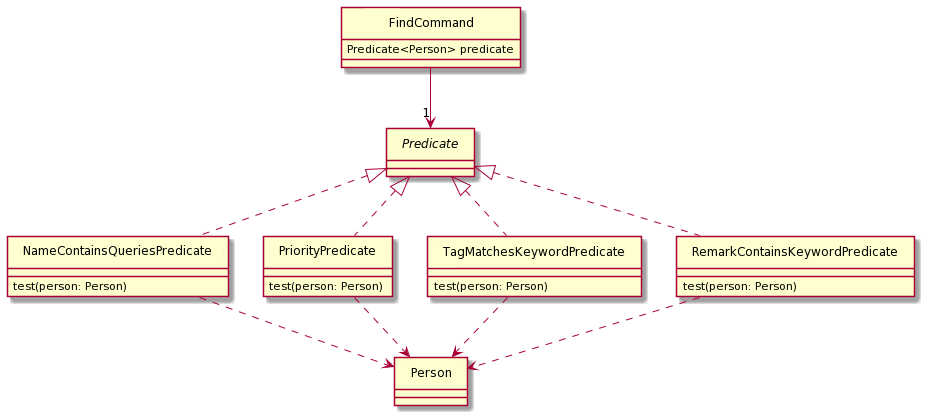
Figure 16: Find Command Class Diagram of FAST
Usage Scenario
Given below is an example usage scenario and how the find mechanism behaves at each step.
1) The user launches the application for the first time.
2) The user inputs find john in the CLI to find all contacts whose names contain john. This calls LogicManager::execute which in turn
calls FastParser::parseCommand to parse the given input.
3) FastParser will determine that it is a find command and will call FindCommandParser::parse. From the given input,
FindCommandParser will determine that the user is searching for a name and return a FindCommand with a NameContainsQueriesPredicate
containing a List of all the search queries (only “john” in this case)
4). After execution of the user input, LogicManager calls FindCommand::execute(model) where model contains methods that mutate
the state of our contacts.
5) Through a series of method chains, it calls ModelManager::getFilteredPersonList(), which will display the results
of the search.
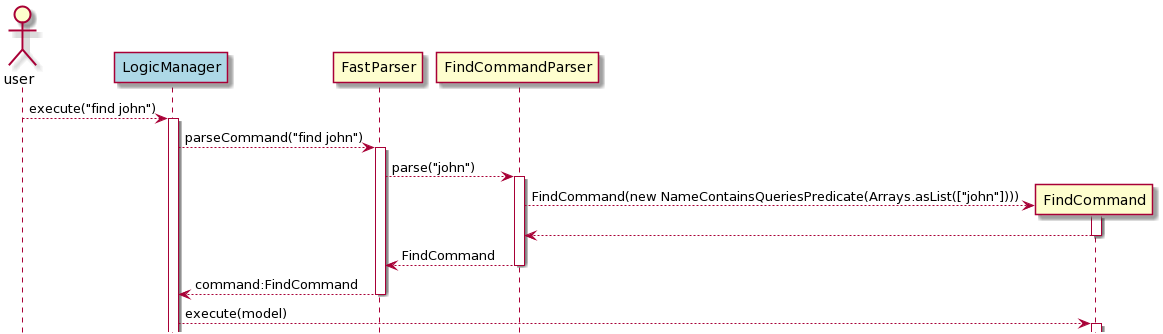
Figure 17: Find Command Sequence Diagram of FAST
Design Considerations
Aspect: How find executes
-
Alternative 1 (current choice): Use many
Predicate<Person>implementations.- Pros: Easy to implement.
- Cons: For every type of find added, a new class must be made.
-
Alternative 2: Implement a custom Find method.
- Pros: May be able to condense into 1 class
- Cons: Very complicated and difficult to implement.
Multiple Delete feature
Current Implementation
Managed by: DeleteCommand.java
and DeleteCommandParser.java
The multiple delete feature built on the existing delete feature. With the introduction of multiple delete,
the DeleteCommand class is designed to handle both types of delete.
DeleteCommand::isSingleDelete() and DeleteCommand::executeSingleDelete() handles the scenario of deleting just one client.
DeleteCommand::isMultipleDelete() and DeleteCommand::executeMultipleDelete() handles the scenario of deleting multiple client.
Multiple delete allows user to delete up to 10 clients in one go.
Duplicated and out of bound indexes are not allowed. If these indexes are detected,
the command will not be executed. HashSet is used to check for duplicates in the extracted indexes.
The indexes will also be sorted in descending order to check for any out of bound indexes.
Currently, multiple delete allows 2 different format of user input:
1) del INDEX...
2) del INDEX-INDEX
To handle this 2 types of scenario, the DeleteCommandParser::isRangeInput() is implemented to determine whether the user input follows format 2.
DeleteCommandParser::isRangeInput() makes use of DeleteCommandParser::CountDash() to ensure that the input is a valid input that contains only one dash.
On top of checking the number of dashes, it also ensures that the length of the input is at least 3 after all whitespaces have been removed.
The end index must be greater than or equals to the start index. If the end index is equals to the start index, it will be treated as a single delete.
After validation, DeleteCommandParser::parseRangeInput() will extract all the indexes that the user wish to delete and create a new DeleteCommand.
The indexes are generated using a loop, starting from the first index, slowly incrementing by 1 until it reaches the end index.
As for format 1, the indexes are extracted from the user input by breaking up the input between the whitespaces.
The activity diagram below shows the flow of a multiple delete command.
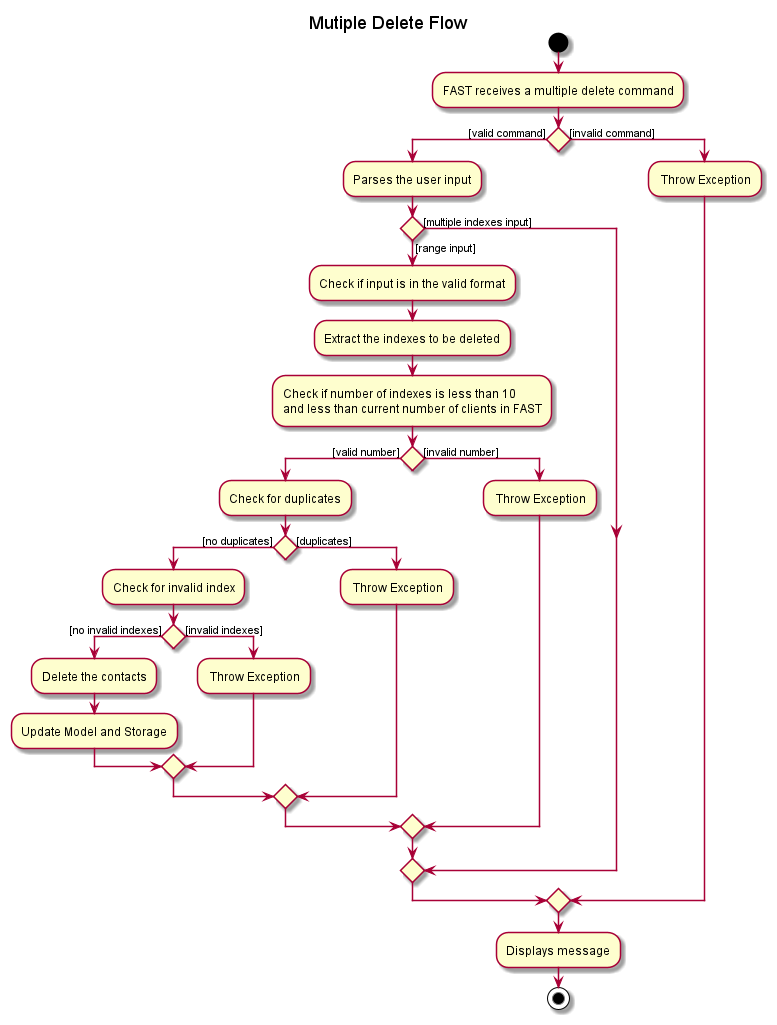
Figure 18: Multiple Delete Activity Diagram of FAST
Usage Scenario
1) The user enters this command del 1-5 into FAST.
2) LogicManage::execute() will be called which will in turn call FastParser::parseCommand()
3) FastParser::ParseCommand() will determine that it is a delete command, and it will call the DeleteCommandParser::parse()
4) Inside DeleteCommandParser::parse():
-
DeleteCommandParser::isRangeInput()will check if the user input contains exactly 1 dash and if the length is at least 3, after removing all the whitespaces. The result will betrue -
DeleteCommandParser::spiltRangeInput()will parse the input and extract out the start index, and the end index. -
DeleteCommandParser::parseRangeInput()will generate all the indexes in between the start and end index and return a newDeleteCommandobject.
5) LogicManager will call DeleteCommand::execute().
6) Inside DeleteCommand::execute():
- It will check if the length of the Index array is more than 10 or more than the number of clients that FAST currently has.
- After validation,
DeleteCommand::isMultipleDelete()will determine that it is a multiple delete. -
DeleteCommand::sortOrder()will sort the indexes in descending order. -
DeleteCommand::getInvalidIndex()will traverse through the Index array to collate a list of invalid index. -
DeleteCommand::checkIndex()will check and determine that there is no invalid index. -
DeleteCommand::checkDuplicates()will check and determine that there is no duplicated index. -
DeleteCommand::executeMultipleDelete()will start to delete the 5 clients in a for-loop throughModel::deletePerson(). - Success message will be displayed afterwards.
The sequence diagram below shows step 1 to step 6 mentioned above.
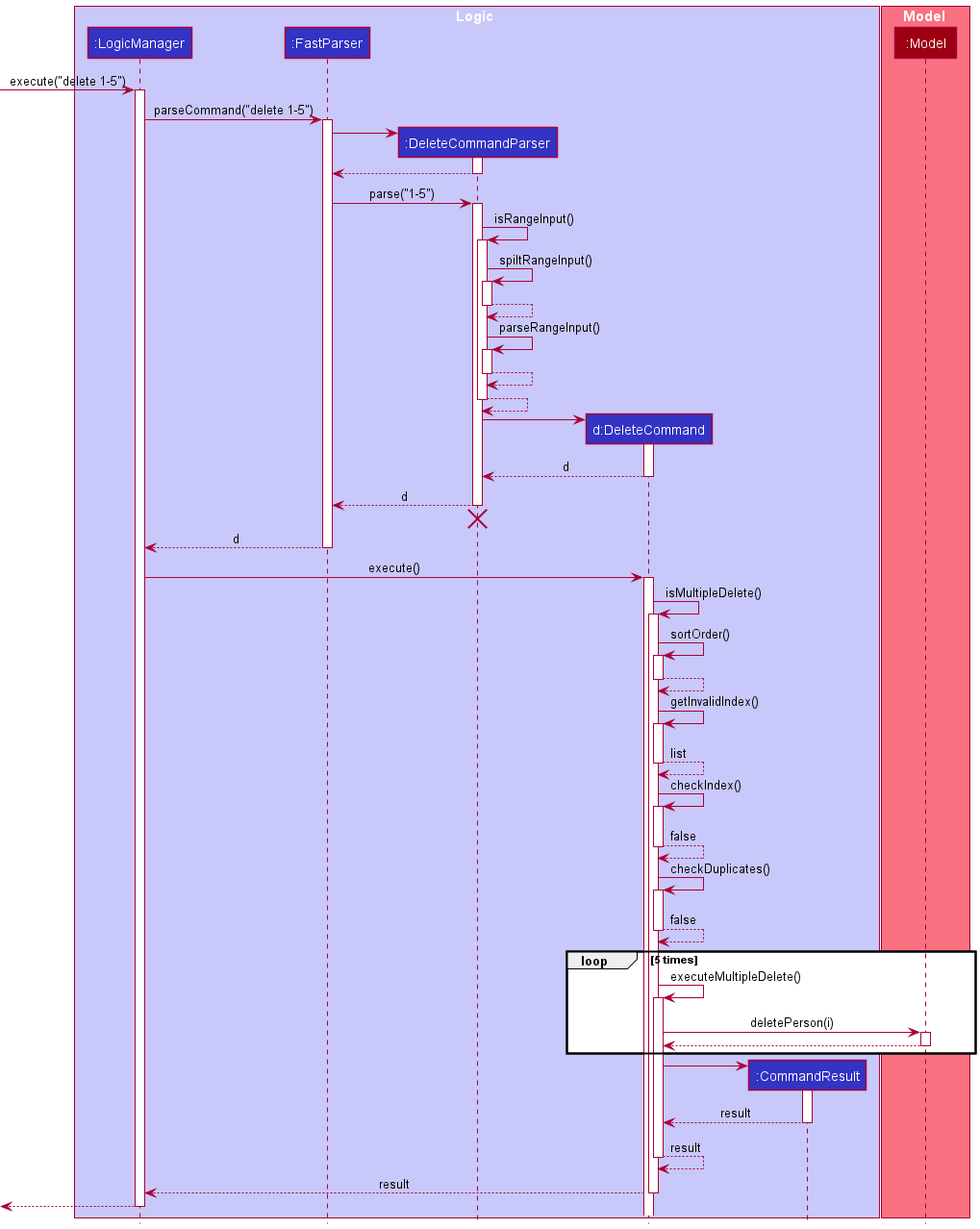
Figure 19: Multiple Delete Sequence Diagram of FAST
Design Consideration
Aspect: How multiple delete performs the order of commands
-
Alternative 1 (current choice): Execute multiple delete in descending order of indexes.
- Pros:
- Detects out of bound index first.
- Cons:
- Have to introduce another method to do the sorting.
- Slower time as the index array needs to be sorted first.
- Pros:
-
Alternative 2: Execute multiple delete in the order of indexes input by user.
- Pros:
- Faster process, do not need to sort.
- Cons:
- More bug-prone, have to account for the differences between the currently deleted index, and the to-be deleted index as the model updates after each delete, hence the index may not be the same as what the user has input.
- Will delete contacts until the first invalid index is detected, might be confusing for the user.
- Pros:
Sort feature
Current Implementation
The sort mechanism is facilitated by the inbuilt Collections::sort method.
This is done by passing a custom comparator that implements the Comparator interface to the sort method.
There are currently three custom comparators implemented in FAST:
-
SortByName– Sorts the contacts alphabetically by name. -
SortByAppointment– Sorts the contact’s appointment chronologically by date and time. -
SortByPriority– Sorts the contacts bypriority tags.
SortByName: Implemented by using the inbuilt String::compareTo.
SortByAppointment: Implemented by first converting the appointment date and time from String to a Date object before using
the inbuilt Date::compareTo method.
SortByPriority: Implemented by first assigning int values to tags, tags with the highest priority will have the smallest int value.
Using those priority values, the inbuilt Integer::compareTo is used.
The activity diagram below illustrates the flow of a sort command.
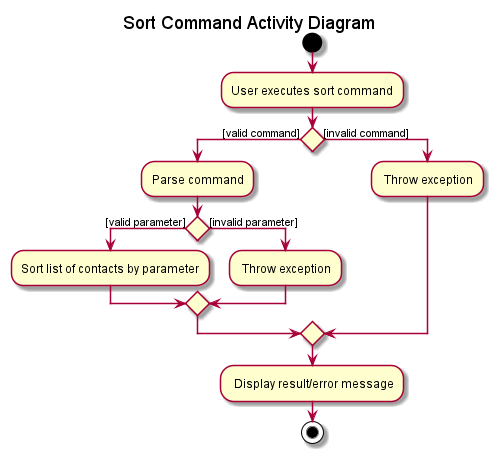
Figure 20: Sort Activity Diagram of FAST
Usage Scenario
Given below is an example usage scenario and how the sort mechanism behaves at each step.
1) The user launches the application for the first time.
2) The user inputs sort name in the CLI to sort all contacts by name. This calls LogicManager::execute which in turn
calls FastParser::parseCommand to parse the given input.
3) FastParser will determine that it is a sort command and will call SortCommandParser::parse. From the given input,
SortCommandParser will create the corresponding SortByName Comparator and return a SortCommand with that comparator.
4) After execution of the user input, LogicManager calls SortCommand::execute(model) where model contains methods that mutate
the state of our contacts.
5) Through a series of method chains, it calls UniquePersonList::sortPersons(SortByName), which executes the sort method
to sort the list of persons by their name.
The sequence diagram below illustrates the execution of sort name.
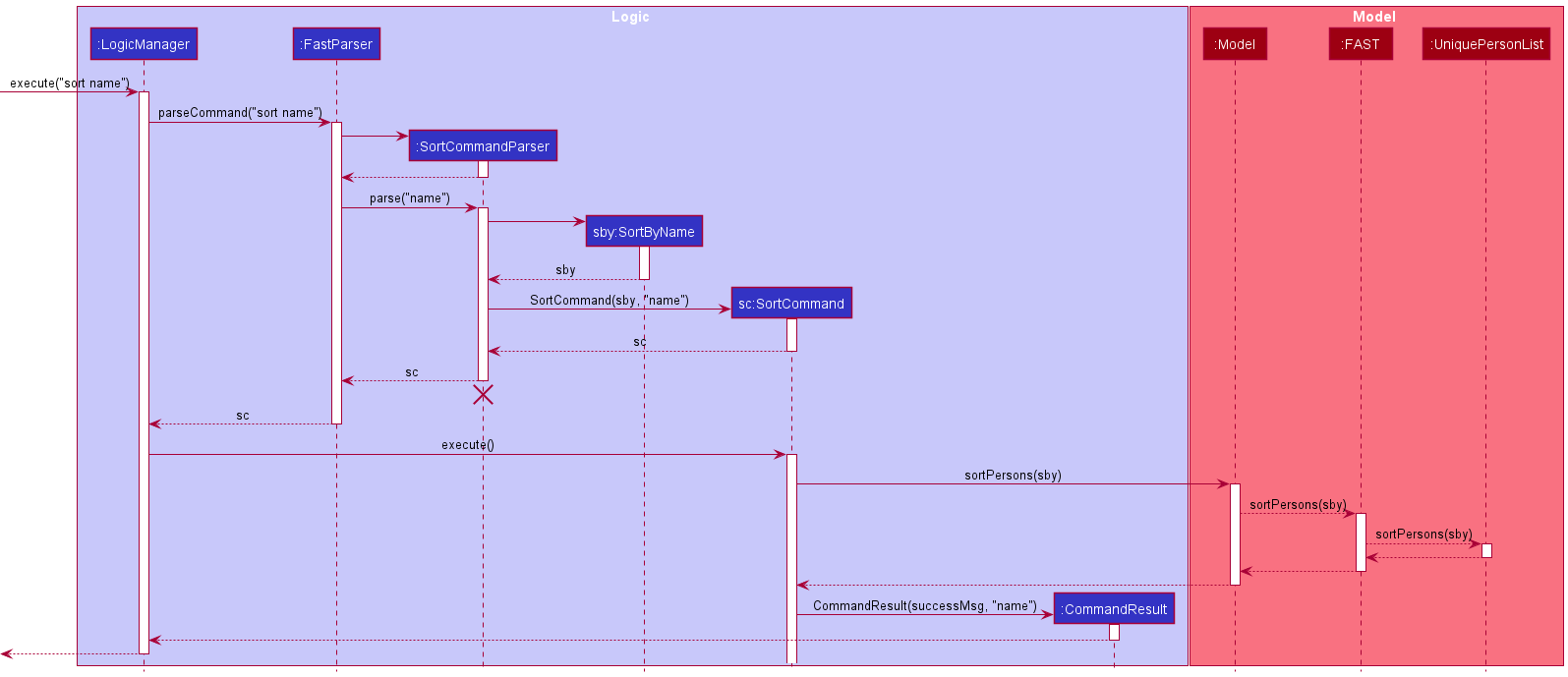
Figure 21: Sort Sequence Diagram of FAST
Design Considerations
Aspect: How sort executes
-
Alternative 1 (current choice): Use the inbuilt
Collections::sort.- Pros: Easy to implement.
- Cons: May need additional attributes to implement the
compareTomethod.
-
Alternative 2: Implement a custom Sort method.
- Pros: May not need additional attributes
- Cons: Very complicated, may have performance issues if the sort is not efficient.
Aspect: How SortByDate is implemented
-
Alternative 1 (current choice): Convert the String date and time value to a Date object before using inbuilt
compareTo.- Pros: Easy to implement.
- Cons: Need to account for empty appointment dates and empty appointment times.
-
Alternative 2: Compare dates in String.
- Pros: No need to convert the values to another type.
- Cons: Complicated since there is a need for 4 different comparisons namely; year, month, date and time.
Help Window
Current Implementation
The Help Windows is a separate window and displays the command usage for each of the command. To access the help window, users have 3 ways to get to the help page:
- Using the menu bar. Click on
Help>Help. - Pressing
F1while using FAST. - Typing the command
help [HELP_TOPIC].
Using the methods 1 and 2 will open the Help Window to the default help window view (currently the Quick start page).
However, using method 3 gives the user the option to directly access the help page of the respective HELP_TOPIC. For
example, using the command help add or help Add will open the Add command help page directly. Whereas if no HELP_TOPIC
was given as parameter, or an invalid parameter is given, the default help window will open. Either ways, the help
window will open to allow users to view help regardless. For reference, the current valid HELP_TOPICS are:
Quick StartAddAppointmentEdit AppointmentDelete AppointmentMark AppointmentClearDeleteEditFindListHelpRemarkSortStatisticTagInvestment Plan TagPriority TagMisc
The activity diagram below shows the many ways a user can utilise the help command
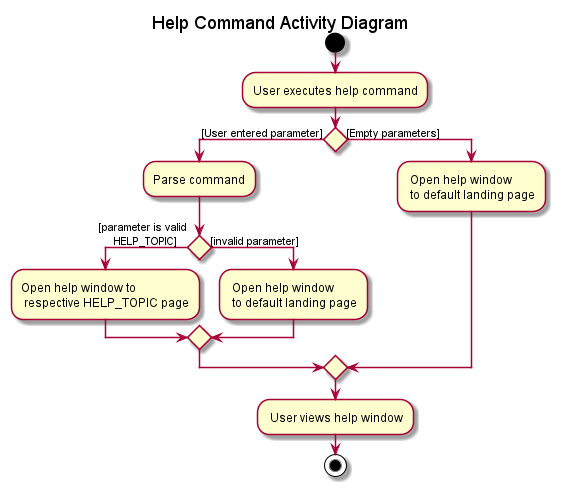
Figure 22: Help Command Activity Diagram of FAST
The way the help command is parsed is slightly different from the other commands. This is due to the help command not
interacting with the model and storage components like other commands. Instead, the parsing of the help command
parameter is done by ParserUtil and verification of the parameter is done in HelpWindow itself. After verification,
HelpWindow will set the text of the JavaFX::Label to be the corresponding help topic. This is as shown in the sequence
diagram as shown below.
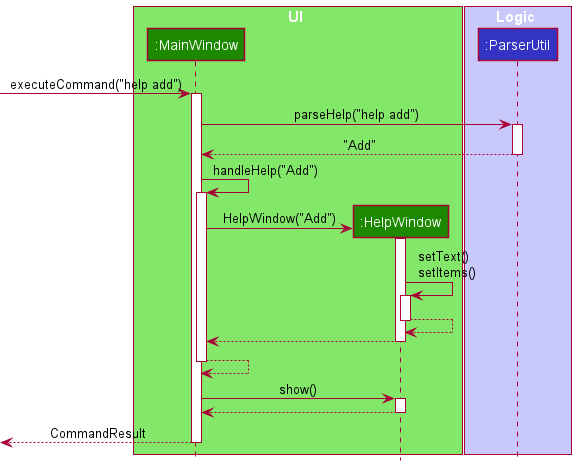
Figure 23: Help Command Sequence Diagram of FAST
To access the different commands’ help page from within the help window, there is a dropdown selector which will
navigate to the different help pages. To achieve this, a JavaFX::ComboBox commandList was used which toggles between all
the available HELP_TOPICS. A method then reads from commandList’s current value and displays the corresponding help message in a
JavaFX::Label. A code snippet is shown below:
EventHandler<ActionEvent> event =
e -> commandInstruction.setText(showCommandUsage(commandList.getValue()));
Design Considerations
Aspect: How to access various commands’ help page
-
Alternative 1 (Current choice): Using
JavaFX::ComboBoxwhich provides a dropdown selector.- Pros: Compact and easy to hide the selector in plain sight without distracting the user. Quick to navigate between the pages.
- Cons: To new users, might not be immediately obvious that the
JavaFX::ComboBoxcan be interacted with. Users might also miss the scroll bar and miss out some commands available.
-
Alternative 2: Using a single-page design where all commands’ help messages are viewable at once
- Pros: Easier to be understood by new users.
- Cons: Cumbersome to users as they would have to scroll down a lot to find their desired command.
-
Alternative 3: Using a Table of Contents (ToC) landing page.
- Pros: Users can see all the available commands at a glance and can select their desired commands easily.
- Cons: Users have to navigate back to the ToC to navigate between each command.
We decided on the first choice as it provided users with the greatest ease of use. It is also the fastest way of navigating between help pages. While we understand that most experienced users might not need to access the help menu, by providing them a quick and easy way to access the commands’ help page when they do need it is very important.
Aspect: How to access the help window
Initially, the help command only involved inputting help into FAST. However, we chose to revamp it to allow an
additional [COMMAND] parameter for the help command, which navigates to the selected command’s help page.
- Pros: Allows experienced users to quickly navigate to their desired help page, without having to open the help menu first and selecting the command help page from there.
- Cons: Users might not know the exact
[COMMAND]parameter to enter, which is counter-intuitive for a help command
To address the cons of our implementation, we decided to compromise by still opening the help menu regardless of a
valid input. If an incorrect [COMMAND] was entered, FAST will provide feedback to the user and still open the help
window to the default page.
Statistics window
Current Implementation
The statistics window displays statistics and insights into the user’s client base. To access the stats window, users have 2 ways of getting to the stats page:
- Using the menu bar. Click on
Stats>Stats. - Pressing
F2while using FAST.
Currently, the stats window provides information for the client’s Priority Tags, and their Insurance Plans Tags. We used
JavaFX::PieChart to visualise the client’s data and display them to the user. We also provided a few template insights
for the user to make sense of the data provided.
To calculate the statistics to be shown in the Priority pie chart, we took the data from Fast by applying different predicates
and creating a new FilteredList each time. We then encapsulated all these data into a PriorityData, which is then
passed to StatsWindow to populate the pie chart with the data and generate the labels. This is illustrated in the sequence diagram
as shown below.
 .
.
Figure 24: Stats Window Sequence Diagram of FAST
The implementation for Investment Plan Tag statistics is identical, except instead of a PriorityData, the data is encapsulated
into a InvestmentPlanData, and uses the methods populateInvestmentPieChart(), getInvestmentPlanData() and
addInvestmentPlanPieChartData() instead.
Design Considerations
Aspect: How to visualise the data
-
Alternative 1 (Current choice): Using
JavaFX::PieChart.- Pros: Can be easily understood by the user. Provides a good overview of the proportion at a glance.
- Cons: Gets messy if there are a lot of variables. Data elements with a small count will be hidden to the user.
-
Alternative 2: Using
JavaFX::BarChart.- Pros: Easier to be understood by new users.
- Cons: The information might be overbearing. Does not provide an immediate overview of the client base. New users might also be confused by the large amount of information displayed at once.
Ultimately, as our main focus was speed and ease of use, we decided on the pie chart implementation as it is both easily understood, yet is able to convey the essence of the data to the user. Other chart types are less common and thus might be confusing to the user. To address the cons of the pie chart, we also included some analysis of the pie chart to help users better understand the data and provide a more complete statistic.
Aspect: How to open the stats window
-
Alternative 1 (Current choice): Using
F2or the menu item.- Pros: More intuitive, and provides a one-key shortcut to open the stats window.
- Cons: Certain devices do not have the function keys, hence they would require to use their mouse and click on the menu item, which goes against the CLI-focused approach of FAST.
-
Alternative 2: Using a dedicated stats command.
- Pros: Consistent with the other features, as they all are accessible with commands.
- Cons: Typing in “stats” into the command box would take longer time than simply pressing the
F2key.
For our current version of FAST, we felt that using the first alternative is more optimal as it is the fastest alternative.
It also provides a distinction between Commands like add or find and utility features like help and stats.
However, in future iterations of FAST, alternative 2 might be more useful if there are different stats to view. For
instance there could be a pie chart window, or another one with a bar chart, and using the stats command with different
parameters can be used to view these different windows.
Tagging feature
Current Implementation
Other than the edit command. a tag command has also been added to make adding and deleting tags easier. This command has a relatively straightforward implementation:
- A
Setof currently assigned tags is retrieved from the specifiedPerson. - A new
Setis created using the retrievedSet, then tags are deleted and added as necessary. - If there are no issues with adding and deleting, and certain conditions are satisfied, the
Personwill be updated with the newSetof tags. Any violations of the conditions will result in an error being shown to the user. The conditions are as follows:- All tag names have a maximum character length of 20 alphanumeric characters
- A maximum of 1 Priority tag exists in the
Setof tags - A maximum of 1 of each Investment Plan tag exists in the
Setof tags - No duplicate tag is added to the
Set - No non-existent tag is attempted to be deleted from the ‘Set’
The activity diagram below shows the flow of a typical tag command.
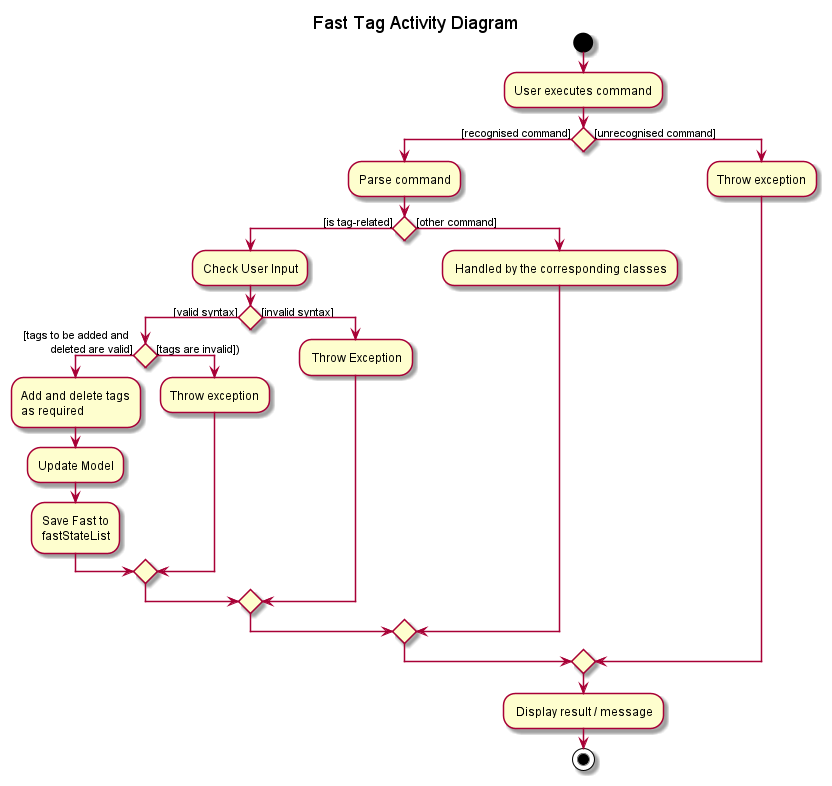
Figure 25: Tag Activity Diagram of FAST
Usage Scenario
1) The user launches the application and inputs tag 1 a/pr/low d/friend, to add a priority tag LowPriority and
delete a tag friend from the first listed contact. We assume the first listed contact only has one tag at this
point in time, which is the friend tag.
2) This calls LogicManager::execute which further calls FastParser::parseCommand to parse the given input.
3) FastParser determines that it is a tag command, and further calls TagCommandParser::parse.
4) TagCommandParser will then identify the tags to add and delete, and proceed to instantiate them then
return a TagCommand that contains a Set of tags to delete and another Set of tags to add. At this point, the
object diagram below shows the state of the Person object and the Tag associated with it.
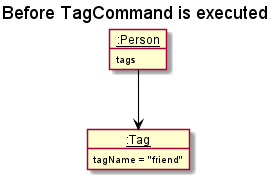
Figure 26: Before Command Executed Object Diagram of FAST
5) LogicManager then calls the method TagCommand::execute, which will attempt to add and delete the specified
tags, while ensuring that certain conditions are met.
6) If there are no issues, the command will finish executing, and a message indicating success will appear.
Any changes to the tags will be reflected immediately: In this case, the tag LowPriority will be added while the
tag friend will be deleted. The object diagram below shows the final state of the Person object
and the Tag associated with it.
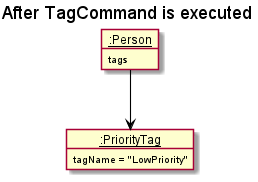
Figure 27: After Command Executed Object Diagram of FAST
The sequence diagram below shows the process for the usage scenario as described above.

Figure 28: Tag Sequence Diagram of FAST
Design Considerations
Aspect: How to add more functionality to the tagging system
-
Alternative 1 (current choice): Implement a dedicated Tag command.
- Pros:
- Isolation of a single feature to a specific command: more intuitive to use.
- Improvement over
editcommand: retains tags not directly affected by the command
- Cons:
- Repeated functionality that already exists in
editcommand
- Repeated functionality that already exists in
- Pros:
-
Alternative 2: Augment the
editcommand.- Pros:
- Reduce the number of commands in the application: less to manage, easier to remember.
- Cons:
- Overloading the
editcommand, which already accepts many parameters and modifiers in its command format, could make it much more confusing to use, especially for newer users. - Harder to implement, as many existing dependencies could be affected.
- Overloading the
- Pros:
Documentation, logging, testing, configuration, dev-ops
Appendix: Requirements
Product scope
Target user profile:
- No time/busy
- Might not be tech-savvy
- Many contacts to manage
- Has a need to manage a significant number of contacts
- Can type fast
- Prefers typing to mouse interactions
- Is reasonably comfortable using CLI apps
- Needs to profile clients
Value proposition: Financial Advisors are busy. We will help them save time by optimising our system for them. FAST keeps track of client details and information for them.
User stories
Priorities: High (must have) - * * *, Medium (nice to have) - * *, Low (unlikely to have) - *
| Priority | As a … | I want to … | So that I … |
|---|---|---|---|
* * * |
user | use the application offline | can view my contacts without an internet connection |
* * * |
FA | delete contact info | will not have useless data in my app |
* * * |
FA | store my clients contact info | can contact them in the future more easily |
* * * |
user | see all of my contacts | know who is in my contacts |
* * * |
new user | learn how to use the app | can effectively use the app |
* * * |
busy person | use the app with friendlier syntax that’s easier to type | can add contacts with less trouble |
* * * |
busy person | see all the available commands at a glance | can focus on managing my client base rather than dealing with the syntax |
* * * |
FA | update my clients contact info | have up to date information |
* * * |
forgetful person | quickly check for the highest priority client | can move on to the next client quickly without delay |
* * * |
FA with many clients | tag my clients’ info | can see different groups of clients according to the tags |
* * |
FA | store my clients contact information | do not need to store them on my phone |
* * |
numbers person | delete multiple contacts in one go | do not have to delete contacts individually |
* * |
FA with many clients | search through my clients | can easily find a specific client |
* * |
FA | have fast access to important numbers (e.g. office, partners | can quickly contact my partners should something arise |
* * |
potential user | see how the app works with sample data | can understand what the app will look like with real data |
* * |
FA | group my clients according to their investment strategies | can easily manage each group |
* * |
FA | archive data that might be obsolete at the moment | do not flood my app with obsolete data and can still access them in the future |
* |
FA | store appointments info of my clients | will not forget about important meetings |
* |
person with many devices | import and export the client info | can switch between devices quickly |
* |
FA with many clients | view stats of my client base | can know how much income I am making |
* |
FA | reminded to contact potential clients | can disturb potential clients into signing on |
* |
FA | check the number of clients and deals currently | can check if i have fulfilled my monthly quota |
* |
FA | store extra info that could be useful | can remember extra details that could be useful in clinching a deal |
* |
FA | see frequently contacted clients | don’t have to keep searching for the same person over and over again |
* |
FA | list out all my investment plans | know what investment plans I am selling |
* |
user | color-code my contacts | can differentiate between the tags, and it looks nicer |
* |
Responsible FA | be reminded of clashes in my appointments | will not lose any potential clients |
Use cases
(For all use cases below, the System is the Financial Advisor Smart Tracker (FAST) and the Actor is the user, unless specified otherwise)
Use case: UC01 - Add Contact
MSS
- User requests to add a new contact.
- FAST displays a message indicating success.
-
FAST displays the new contact below.
Use case ends.
Extensions
- 1a. The given command syntax is invalid.
- 1a1. FAST shows an error message.
- 1a2. FAST shows an example of add contact command to user.
- 1b. The given input parameters is invalid.
- 1b1. FAST shows an error message.
-
1b2. FAST shows an example of add contact command to user.
Use case ends.
Use case: UC02 - Delete Contact
MSS
- User requests to list persons (UC06).
- User requests to delete a specific person in the list.
-
FAST deletes the person.
Use case ends
Extensions
- 2a. The given index is invalid.
- 2a1. FAST shows an error message.
-
2a2. FAST shows an example of delete contact command to user.
Use case ends.
Use case: UC03 - Edit Contact
MSS
- User requests to list contacts (UC06).
- User requests to edit a contact.
-
FAST displays the updated contact.
Use case ends.
Extensions
- 2a. The given index is invalid.
- 2a1. FAST shows an error message.
-
2a2. FAST shows an example of edit contact command to user.
Use case ends.
- 2b. The given command syntax is invalid.
- 2b1. FAST displays an error message.
-
2b2. FAST displays an example of the edit contact command to the user.
Use case ends.
- 2c. The given input parameters is invalid.
- 2c1. FAST shows an error message.
- 2c2. FAST shows an example of add contact command to user.
Use case: UC04 - Add a remark
MSS
- User requests to list persons (UC06).
- User requests to add a remark to a specific person in the list.
-
FAST displays the new remark in the contact.
Use case ends
Extensions
- 2a. The given index is invalid.
- 2a1. FAST shows an error message.
-
2a2. FAST shows an example of remark command to user.
Use case ends
- 2b. The given command syntax is invalid
- 2b1. FAST displays an error message.
-
2b2. FAST displays an example of the remark command to the user.
Use case ends
- 2c. The given input parameters is invalid.
- 2c1. FAST shows an error message.
-
2c2. FAST shows an example of add contact command to user.
Use case ends
- 2d. User removes an existing remark
-
2c1. FAST displays a message that the remark has been removed.
Use case ends.
-
Use case: UC05 - Find Contact by name
MSS
- User searches for a name.
-
FAST shows a list of persons with the specified name or people whose name starts with the search query.
Use case ends.
Extensions
- 1a. The given search query is invalid.
- 1a1. FAST shows an error message.
-
1a2. FAST shows an example of find command to user.
Use case ends.
- 1b FAST cannot find any contacts with the given search query.
-
1b1. FAST displays a message to inform user no contacts that matches the query was found.
Use case ends.
-
Use case: UC06 - List Contacts
MSS
- User requests to list contacts.
-
FAST displays a list of contacts.
Use case ends.
Extensions
-
2a. The list is empty.
Use case ends.
Use case: UC07 - Add Appointment
MSS
- User requests to list persons (UC06)
- User requests to add a new appointment.
- FAST displays a message indicating success.
-
FAST displays the new contact below.
Use case ends.
Extensions
- 2a. The given index is invalid.
- 2a1. FAST shows an error message.
- 2a2. FAST shows an example of add appointment command to user.
- 2b. The given command syntax is invalid.
- 2b1. FAST shows an error message.
-
2b2. FAST shows an example of add appointment command to user.
Use case ends.
- 2c. The given input parameters is invalid.
- 2c1. FAST shows an error message.
-
2c2. FAST shows an example of add contact command to user.
Use case ends.
- 2d. An appointment has already been scheduled.
-
2d1. FAST shows an error message.
Use case ends.
-
Use case: UC08 - Delete Appointment
MSS
- User requests to list persons (UC06)
- User requests to delete an appointment.
- FAST displays a message indicating success.
-
FAST displays the new contact below.
Use case ends.
Extensions
- 2a. The given index is invalid.
- 2a1. FAST shows an error message.
- 2a2. FAST shows an example of delete appointment command to user.
- 2b. No appointment scheduled yet.
-
2b1. FAST shows an error message.
Use case ends.
-
Use case: UC09 - Edit Appointment
MSS
- User requests to list persons (UC06)
- User requests to edit an appointment.
- FAST displays a message indicating success.
-
FAST displays the new contact below.
Use case ends.
Extensions
- 2a. The given index is invalid.
- 2a1. FAST shows an error message.
- 2a2. FAST shows an example of edit appointment command to user.
- 2b. The given command syntax is invalid.
- 2b1. FAST shows an error message.
-
2b2. FAST shows an example of edit appointment command to user.
Use case ends.
- 2c. The given input parameters is invalid.
- 2c1. FAST shows an error message.
-
2c2. FAST shows an example of add contact command to user.
Use case ends.
- 2d. No appointment scheduled yet.
-
2d1.FAST shows an error message.
Use case ends.
-
Use case: UC10 - Mark Appointment
MSS
- User requests to list persons (UC06)
- User requests to mark an appointment.
- FAST displays a message indicating success.
-
FAST displays the new contact below.
Use case ends.
Extensions
- 2a. The given index is invalid.
- 2a1. FAST shows an error message.
- 2a2. FAST shows an example of mark appointment command to user.
- 2b. No appointment scheduled yet.
-
2b1. FAST shows an error message.
Use case ends.
-
Use case: UC11 - Unmark Appointment
MSS
- User requests to list persons (UC06)
- User requests to unmark an appointment.
- FAST displays a message indicating success.
-
FAST displays the new contact below.
Use case ends.
Extensions
- 2a. The given index is invalid.
- 2a1. FAST shows an error message.
- 2a2. FAST shows an example of unmark appointment command to user.
- 2b. Appointment already exist.
-
2b1. FAST shows an error message.
Use case ends.
-
Use case: UC12 - Sort contacts
MSS
- User requests to sort persons
- FAST displays a list of contacts sorted by the given keyword. Use case ends.
Extensions
- 2a. The given command syntax is invalid.
- 2a1. FAST shows an error message.
- 2a2. FAST shows an example of sort command to user.
- 2b. The list is empty. Use case ends.
Use case: UC13 - Find Contact by priority
MSS
- User searches for a priority.
-
FAST shows a list of persons with the specified priority.
Use case ends.
Extensions
- 1a. The given priority is invalid and does not follow the format of a priority tag.
- 1a1. FAST shows an error message.
-
1a2. FAST shows an example of find command and correct format for priority to user.
Use case ends.
- 1b FAST cannot find any contacts with the given priority.
-
1b1. FAST displays a message to inform user no contacts with the given priority were found.
Use case ends.
-
Use case: UC14 - Find Contact by tag
MSS
- User searches for some tags.
-
FAST shows a list of persons with the specified tags.
Use case ends.
Extensions
- 1a. The given tags are invalid.
- 1a1. FAST shows an error message.
-
1a2. FAST shows an example of find command.
Use case ends.
Use case: UC15 - Find Contact by remark
MSS
- User searches for a remark.
-
FAST shows a list of persons whose remarks contain the searched remark.
Use case ends.
Extensions
- 1a. The given remark is invalid.
- 1a1. FAST shows an error message.
-
1a2. FAST shows an example of find command.
Use case ends.
- 1b FAST cannot find any contacts with the given remark.
-
1b1. FAST displays a message to inform user no contacts with the given remark were found.
Use case ends.
-
Use case: UC16 - Help command
MSS
- User requests to open the help window.
- FAST opens a new help window. Use case ends.
Extension
- 1a. There is already a help window opened.
- 1a1. FAST focuses on the existing help window. Use case ends.
Use case: UC17 - Statistics window
MSS
- User requests to open the stats window.
- FAST opens a new stats window. Use case ends.
Extension
- 1a. There is already a stats window opened.
- 1a1. FAST updates and focuses on the existing help window. Use case ends.
Use case: UC18 - Edit tags of a contact
MSS
- User requests to list contacts (UC06)
- User requests to edit tags of a contact
- FAST displays a message indicating success.
- FAST displays the updated contact below.
Use case ends.
Extensions
- 2a. The given index is invalid.
- 2a1. FAST shows an error message.
-
2a2. FAST shows an example of the tag command to the user.
Use case ends.
- 2b. A tag to be added to the specified contact already exists.
-
2b1. FAST shows an error message to the user that the tag already exists.
Use case ends.
-
- 2c. A tag to be deleted from the specified contact does not exist.
-
2c1. FAST shows an error message to the user that the tag does not exist.
Use case ends.
-
- 2d. More than one Priority tag is added to a contact.
-
2d1. FAST shows an error message to the user that each contact may only have one Priority tag.
Use case ends.
-
- 2e. More than one of each Insurance Plan tag is added to a contact.
-
2e1. FAST shows an error message to the user that each contact may only have one of each Investment Plan tag.
Use case ends.
-
- 2f. Tag name exceeds maximum length of 20 characters.
-
2f1. FAST shows an error message to the user that the maximum tag length is 20 characters.
Use case ends.
-
Non-Functional Requirements
- Should work on any mainstream OS as long as it has Java
11or above installed. - Should be able to hold up to 1000 persons without a noticeable sluggishness in performance for typical usage.
- A user with above average typing speed for regular English text (i.e. not code, not system admin commands) should be able to accomplish most of the tasks faster using commands than using the mouse.
- Should work fully offline, and users should not have to overly rely on external links for important guides and documentation
- Application should be usable by a single user
Glossary
- Contact: A client to be stored in FAST, includes information on the client
- CLI: Command Line Interface
- FAST: Financial Advisor Smart Tracker, the name of this software
- FXML: FX Markup Language, the format in which the GUI layout is stored in
- Java 11: Version of the programming language, used in the coding of this software
- Mainstream OS: Windows, Linux, Unix, OS-X
- MSS: Main success scenario
- Private contact detail: A contact detail that is not meant to be shared with others
- Remark: A comment/note about a specific contact Tag A short note about a specific contact, used for sorting and grouping contacts
- URL: Uniform Resource Locator, known more commonly as a link to a website.
- XML: Extensible MarkUp Language, used to format the layout of this software
Appendix: Instructions for manual testing
Given below are instructions to test the app manually.
Note: These instructions only provide a starting point for testers to work on;
testers are expected to do more exploratory testing.
Launch and shutdown
-
Initial launch
-
Download the jar file and copy into an empty folder
-
Double-click the jar file Expected: Shows the GUI with a set of sample contacts. The window size may not be optimum.
-
-
Saving window preferences
-
Resize the window to an optimum size. Move the window to a different location. Close the window.
-
Re-launch the app by double-clicking the jar file.
Expected: The most recent window size and location is retained.
-
Adding a Client
- Adds a new Client to FAST.
-
Prerequisites: Arguments are valid, compulsory parameters are provided. Client added must not be a duplicated client.
-
Test case:
add n/Matthew p/98523146 e/Matt@example.com a/Seletar Lane 12
Expected: Adds a client with nameMatthew, phone98523146, emailMatt@example.comand addressSeletar Lane 12. Success message with details of the newly added client will be shown. -
Test case:
add n/Matthew
Expected: No client added. Error message is shown. -
Other incorrect add commands to try:
add n/Matthew p/98523146... e/Matt@example.com a/Seletar Lane 12,add n/Matthew... p/98523146 e/Matt@example.com a/Seletar Lane 12,add n/Matthew p/98523146 e/Matt...@example.com a/Seletar Lane 12,add n/Matthew p/98523146 e/Matt@example.com a/Seletar Lane 12...(where … represents string that exceeds the character limit).
Expected: Similar to previous (in Point 3).
-
Character limits: 1) Name - 0 to 50 characters
2) Phone - 3 to 20 digits
3) Email - max 100 characters (at least 2 for domain portion, before @ symbol)
4) Address - max 100 characters
5) Remark - max 45 characters
6) Tag - max 20 characters
Editing a Client
- Edits an existing Client in FAST.
-
Prerequisites: Arguments are valid, compulsory parameters are provided. Multiple clients in the list.
-
Test case:
edit 1 n/Mattias
Expected: Edits the name of the first client in the displayed list. Success message with details of the edited client is shown. -
Test case:
edit n/Mattias
Expected: No client added. Error message is shown. -
Other incorrect edit commands to try:
edit 1 n/,edit 1 p/11,edit 1 e/mattias@u
Expected: Similar to previous (in Point 3).
-
Finding a Client
Finding by name
- Finding a client by their name in FAST.
-
Prerequisites: Arguments are valid, compulsory parameters are provided. Multiple clients in the list.
-
Test case:
find john
Expected: All clients with the name “John” or whose names start with “John” are displayed. Success message with details of search is shown. -
Test case:
findExpected: No search results are displayed. Error message is shown.
-
Finding by priority
- Finding a client by their priority tag in FAST.
-
Prerequisites: Arguments are valid, compulsory parameters are provided. Multiple clients in the list.
-
Test case:
find pr/high
Expected: All clients with a “HighPriority” tag are displayed. Success message with details of search is shown. -
Test case:
find pr/friend
Expected: No search results are displayed. Error message is shown. -
Other incorrect find commands to try:
find pr/,find pr/
Expected: Similar to previous (in Point 3).
-
Finding by tag
- Finding a client by their tag in FAST.
-
Prerequisites: Arguments are valid, compulsory parameters are provided. Multiple clients in the list.
-
Test case:
find t/friend
Expected: All clients with a “friend” tag are displayed. Success message with details of search is shown. -
Test case:
find t/
Expected: No search results are displayed. Error message is shown. -
Other incorrect find commands to try:
find t/ <br>Expected: Similar to previous (in Point 3).
-
Finding by remark
- Finding a client by their tag in FAST.
-
Prerequisites: Arguments are valid, compulsory parameters are provided. Multiple clients in the list.
-
Test case:
find r/likes to eat
Expected: All clients with remarks containing “likes to eat” are displayed. Success message with details of search is shown. -
Test case:
find r/
Expected: No search results are displayed. Error message is shown. -
Other incorrect find commands to try:
find r/
Expected: Similar to previous (in Point 3).
-
Deleting a Client
Single delete
-
Deleting a client while all clients are being shown
-
Prerequisites: List all clients using the
listcommand. Multiple clients in the list. -
Test case:
del 1
Expected: First contact is deleted from the list. Success message with details of the deleted contact shown in the status message. -
Test case:
del 0
Expected: No person is deleted. Error message displayed. -
Other incorrect delete commands to try:
del,del x(where x is larger than the list size)
Expected: Similar to previous (in Point 3).
-
Multiple delete
- Deleting multiple clients using range input while all clients are being shown
-
Prerequisites: List all clients using the
listcommand. Multiple clients in the list. Argument is valid. -
Test case:
del 1-3
Expected: First, second and third contacts are deleted from the list. Success message showing number of contacts deleted is shown . -
Test case:
del 3-1
Expected: No client is deleted. Error message displayed. -
Other incorrect delete commands to try:
del,del 1-,del 1-x(where x is larger than the list size)
Expected: Similar to previous (in Point 3).
-
- Deleting multiple clients using several indexes input while all clients are being shown
-
Prerequisites: List all clients using the
listcommand. Multiple clients in the list. Argument is valid. -
Test case:
del 1 3 5
Expected: First, third and fifth contacts are deleted from the list. Success message showing number of contacts deleted is shown . -
Test case:
del 1 0
Expected: No client is deleted. Error message displayed. -
Other incorrect delete commands to try:
del,del 1 x 2(where x is larger than the list size)
Expected: Similar to previous.
-
Adding a remark
- Adds a remark to an existing Client in FAST.
-
Prerequisites: Arguments are valid, compulsory parameters are provided. Multiple clients in the list.
-
Test case:
rmk 1 r/He loves to sleep.
Expected: Add a remarkHe loves to sleepto the first client in the displayed list. Success message with details of the client, and the new remark is shown. -
Test case:
rmk 1 r/
Expected: Removes the remark of the first client in the displayed list. Success message with details of the client, and an empty remark is shown. -
Other incorrect remark commands to try:
rmk r/,rmk 1 r/remark...(where remark… represents a remark longer than 45 characters)
Expected: Similar to previous (in Point 4).
-
Appointment Feature
Adding an appointment
- Adds a new appointment to FAST
-
Prerequisites: Arguments are valid, compulsory parameters provided and appointment does not exist for the specified client yet.
-
Test Case:
aa 1 d/2030-05-15 t/07:00 v/NUS
Expected: Adds an appointment to the first client in the displayed list with date15 May 2030, time0700hrsand venueNUS. Success message with details of the client name and appointment added is shown. -
Test Case:
aa 1 v/NUS
Expected: No appointment added. Error message displayed. -
Other invalid commands to try:
aa d/2023-05-15,aa 1 d/2019-05-15,aa 1 d/2023-15-05,aa 1 d/2023-05-15 t/0700,aa y d/2023-05-15(where y is an index with an appointment),aa 1 v/venue...(where venue… is longer than 20 characters)
Expected: Similar to previous testcase (in Point 3).
-
Editing an appointment
- Edits an existing appointment in FAST
-
Prerequisites: Arguments are valid, compulsory parameters provided and appointment exists for the specified client yet.
-
Test Case:
ea 1 d/2030-12-16 t/17:00 v/SOC
Expected: Edits the appointment of the first client in the displayed list. Changes the date to16 Dec 2030, time to1700hrsand venue toSOC. Success message with details of the client name and edited appointment is shown. -
Test Case:
ea 1
Expected: No appointment edited. Error message displayed. -
Other invalid commands to try:
ea d/2023-12-16,ea 1 d/2019-12-16,ea 1 d/2023-16-12,ea 1 d/2023-12-16 t/1700ea y v/SOC(where y is an index with no appointment),ea 1 v/venue...(where venue… is longer than 20 characters)
Expected: Similar to previous testcase (in Point 3).
-
Deleting an appointment
- Deletes an existing appointment in FAST
-
Prerequisites: Arguments are valid, compulsory parameters provided and appointment exists for the specified client yet.
-
Test Case:
da 1
Expected: Deletes the appointment of the first client in the displayed list. Success message with client name is shown. -
Test Case:
da 0
Expected: No appointment deleted. Error message displayed. -
Other invalid commands to try:
da,da x(where x is larger than the list size)
Expected: Similar to previous testcase (in Point 3).
-
Marking an appointment
- Marks an existing appointment in FAST
-
Prerequisites: Arguments are valid, compulsory parameters provided and appointment exists for the specified client yet.
-
Test Case:
ma 1
Expected: Marks and deletes the appointment of the first client in the displayed list. Appointment count is incremented by 1. Success message with details of the client name and edited appointment is shown. -
Test Case:
ma 0
Expected: No appointment marked. Error message displayed. -
Other invalid commands to try:
ma,ma x(where x is larger than the list size),ma y(where y is an index with no appointment).
Expected: Similar to previous testcase (in Point 3).
-
Unmarking an appointment
- Unmarks an existing appointment in FAST
-
Prerequisites: Arguments are valid, compulsory parameters provided and appointment does not exist for the specified client yet.
-
Test Case:
ua 1
Expected: Unmarks the appointment of the first client in the displayed list. Appointment count is decremented by 1. Success message with client name is shown. -
Test Case:
ua 0
Expected: No appointment unmarked. Error message displayed. -
Other invalid commands to try:
ua,ua x(where x is larger than the list size),ua y(where y is an index with an appointment).
Expected: Similar to previous testcase (in Point 3).
-
Viewing help
- Opening a new help window via command
-
Prerequisites: No help window is open currently.
-
Test Case:
help add
Expected: A help window will open on top of the main window. It should display theAddcommand usage page. -
Test Case:
help priority tag
Expected: The existing help window will focus on top of the main window. It should display thePriority Tagcommand usage page. -
Test Case:
help test
Expected: The existing help window will focus on top of the main window. It should display the default command usage page as an invalid HELP_TOPIC was used. -
Other invalid commands to try:
help
Expected: Similar to previous testcase (in Point 4)
-
Viewing stats
- Opening a new stats window
-
Prerequisites: No stats window is open currently. No new persons are added to FAST.
-
Test Case: Open the stats window (with
F2or with the menu item)
Expected: A stats window will open on top of the main window. There should be 2 pie charts displayed, one for Priority Tags and one for Investment Plan Tags, and the counts should tally with the data in FAST. -
Test Case:
- Add a new person with a Priority Tag.
- Open the stats window again.
Expected: The stat window will focus on top of the main window. The pie charts should be updated to include the new person’s data.
-
Test Case:
-
clearthe persons in FAST. - Open the stats window.
Expected: The existing stats window will focus on top of the main window. There should be no pie charts displayed and there should be a message at the side informing the user that there are no Tags detected.
-
-
Other invalid commands to try: Editing the Tags instead of adding a new persons
Expected: Similar to previous testcase (in Point 3).
-
Sorting Clients
- Sorts the list of clients by a given keyword
-
Prerequisites: Arguments are valid, FAST contains clients.
-
Test Case:
sort name
Expected: The list of clients is sorted alphabetically by name. -
Test Case:
sort nam
Expected: No sorting happens. Error message displayed.
-
Tag Feature
Editing tags of a client
- Add tags to a client
-
Prerequisites: Arguments are valid, FAST contains clients, tags to be added do not already exist on the client. After adding, the client should not have more than 1 priority tag.
-
Test Case:
tag 1 a/pr/low
Expected: The priority tagLowPriorityis added to the client in index 1. Success message with updated list of tags is shown. -
Test Case:
tag 2 a/friend a/ip/save
Expected: The tagfriendand investment plan tagSavingsis added to the client in index 2. Success message with updated list of tags is shown. -
Test Case:
tag 1 a/thisisalongtaghahahaahahahaahhahaah
Expected: No tag is added. Error message displayed stating the constraints for adding a tag. -
Test Case:
tag 1 a/pr/low a/ pr/high
Expected: No tag is added. Error message displayed stating that each client can only have 1 priority tag. -
Other invalid commands to try:
tag,tag x(where x is larger than the list size, or 0 or a negative number),tag y a/friend(where y is the index of a client that already has thefriendtag).
Expected: No tag is added. Error message displayed describing the nature of the issue.
-
- Delete tags from a client
-
Prerequisites: Arguments are valid, FAST contains clients, tags to be deleted do exist on the client.
-
Test Case:
tag 1 d/pr/high
Expected: The priority tagHighPriorityis deleted from the client in index 1. Success message with updated list of tags is shown. -
Test Case:
tag 2 a/boss a/ip/property
Expected: The tagbossand investment plan tagPropertyInsuranceis deleted from the client in index 2. Success message with updated list of tags is shown. -
Test Case:
tag 2 d/friend(where the client at index 2 does not have thefriendtag).
Expected: No tag is deleted. Error message displayed stating that the specified tag does not exist.
-
Saving data
-
Dealing with missing/corrupted data files
-
Prerequisites: At least one modification has been made to the persons list (e.g.
add n/Matthew p/98523146 e/Matt@example.com a/Seletar Lane 12). FAST is not currently open. -
Test Case:
- Go to the directory that contains FAST.jar.
- navigate to
dataand openfast.json. - In line 3, change “name” to “test”.
- Launch FAST.
Expected: FAST should be completely blank, with no data displayed.
-
Test Case:
- Go to the directory that contains FAST.jar.
- navigate to
dataand deletefast.json. - Launch FAST.
Expected: FAST should contain a default set of persons.
-
-
Ensuring FAST saves your data
-
Prerequisites: FAST is not empty.
-
Test Case:
-
adda new person to FAST. - Close FAST by closing the window and relaunch it
Expected: The newest person should have been saved and displayed at the bottom of the person list.
-
-
Test Case:
- Modify the appointment details of a person in FAST.
- Close FAST by closing the window and relaunch it
Expected: The affected person’s appointment should have been saved and displayed correctly.
-
Test Case:
-
clearthe data in FAST. - Close FAST by closing the window and relaunch it
Expected: FAST should be completely blank, with no data displayed.
-
-