User Guide
- Introduction
- How to use this user guide
- Quick start
- Features
- FAQs
- Command summary
- Glossary
Introduction

Welcome and thank you for downloading FAST! Are you a financial advisor having troubles managing your contacts on your phone? Do you find existing contact management software troublesome and not intuitive to use? Do you want a free alternative compared to those paid contact management software? If you answered “YES!” to any those questions, then FAST is for you!
FAST stands for Financial Advisor Smart Tracker (FAST), and as its name implies, we strive to be the fastest, and most efficient when it comes to managing your contacts. FAST is a free and open-source desktop app for Financial Advisors to manage their contacts. More importantly, FAST is optimized for those who prefer to work with a Command Line Interface (CLI) while still having the benefits of a Graphical User Interface (GUI). If you are a Financial Advisor that can type fast, FAST will get your contact management tasks done faster than traditional GUI apps!
Features overview
Here is an overview of the features FAST offers:
- Keep track of your client’s information (i.e. Name, Phone number, Email address, Home address, and Remarks) in our all-in-one app!
- Record and keep track of your client’s appointment dates. Never miss another appointment date again!
- Tag your clients with the insurance plan they have purchased or are interested in.
- View built-in analysis of your client base to better understand your portfolio.
Purpose of this guide
This guide aims to help new users to be familiar with FAST. After reading this guide, new users will be more familiar with the different features available in FAST. This guide also serves as a reminder for existing users to quickly search for specific information if they are unsure of how to use certain features, by clicking on the links, to jump to the section where the information which they are looking for exists.
How to use this user guide
We recommend first time users to read the user guide in the order that is written. Throughout the user guide, we include links in blue like this which will jump to the corresponding section of the user guide. These links allow you to quickly navigate this document. This guide follows the structure as stated here.
We also use special formats to highlight information that will be important or useful to you. These include:
Cautions
 Caution Example caution
Messages that appear in these boxes are important to take note of, as not knowing them might harm your user experience.
Tips
 Tip:
Example tip
Tip:
Example tip
Messages that appear in these boxes can help you to more effectively use FAST.
Useful information
 Example useful information
Messages that appear in these boxes will be useful in helping you to understand how to use FAST.
Technical Information
Example technical information
Messages that appear in these boxes indicate that the text is of a more technical nature, such as user input.
Structure of this document
To help you make the most of your time, we have added a multitude of features to FAST, which will help you efficiently manage your contacts. As such, this user guide has been structured to help you find what you are looking for.
In How to use this user guide, you can learn how to most effectively read through this guide.
In Quick start, you will find simple instructions on how to quickly begin using FAST.
In Features, you can find documentation on how to use the features available in FAST.
In FAQs, you may find answers to questions or problems you might have while using FAST.
In Command summary, you will find a summary of the commands available in FAST.
In Glossary, you will find useful descriptions and meanings of terms used in this document.
Quick start
-
Ensure you have Java
11or above installed in your Computer. FAST can be used on any operating system including Windows, macOS or Linux -
Download the latest
FAST.jarfrom here. -
Copy the file to the folder you want to use as the home folder for your FAST.
-
Double-click the file to start the app. The GUI similar to the below should appear in a few seconds.
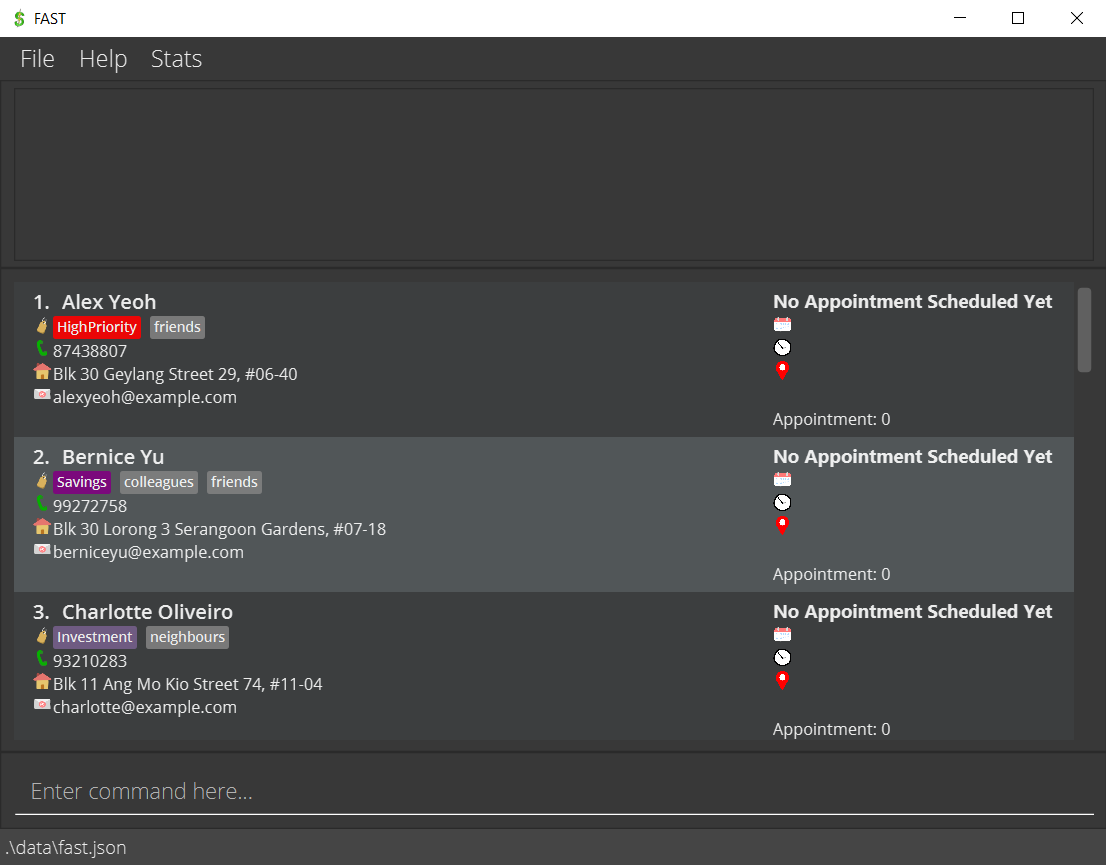
- When you first start up, FAST will contain some sample data for you to explore the different features.
- You are now ready to start managing your clients!
User interface

Referring to the image above, the Menu bar at the top is where you can access the Help page, Stats page and exit
FAST.
Next, the Results display is where FAST gives you feedback to your commands. For example, if you make a typo
in your command, FAST will inform you here!
Following that, we have the Client information cards. Each client is represented by a card, which contains
all the information of that client.
Lastly, the Command box is where you can type in all your commands!
Try it out!
We recommend that you play around with FAST to get a better idea of the features and their usages. Don’t worry, these are all sample data! Here are some commands you can try to see what they do:
- Add a contact named “Matthew Shen” to FAST
add n/Matthew Shen p/91087657 e/matthew@example.com a/511 Seletar Road 12
- Delete the 3rd contact in FAST
del 3
- View all your saved contacts
list
- Try searching for a high priority client!
find pr/high
- Try setting an appointment for him.
aa 1 d/2021-12-12 t/14:30 v/Buona Vista
When you are ready to use FAST to keep track of your own clients, you can use
clear to delete this sample data.
Features
Command Format
All the commands used in FAST application follows these notations!
- Words in
UPPER_CASEare the parameters to be added in by the user.
- e.g. for
add n/NAME,NAMEis where you would replace it with the actual client’s name such as inadd n/John Doe.
- e.g. for
- Items in square brackets are optional.
- e.g. if you see
n/NAME [t/TAG], this can be used asn/John Doe t/friendor asn/John Doe.
- e.g. if you see
- Items with
… after them can be used zero or more times.
- e.g. if you see
[t/TAG]…, it can bet/friend,t/friend t/familyor just left empty.
- e.g. if you see
- Parameters can be in any order. (This excludes parameters without a prefix.)
- e.g. if the command uses this format:
n/NAME p/PHONE_NUMBER, you can also inputp/PHONE_NUMBER n/NAME.
- e.g. if the command uses this format:
Notes about the command format:
-
Parameter without a prefix must be the first parameter in the command (when required).
- If a parameter is expected only once in the command, but you specified it multiple times, only the
last occurrence of the parameter will be taken.
- e.g. if you specify
p/12341234 p/56785678, onlyp/56785678will be taken.
- e.g. if you specify
- For commands that do not take in any parameter (such as
list,exitandclear), anything written after the command will be ignored.
- e.g. if you input
help 123, it will simply be interpreted ashelp.
- e.g. if you input
- If a command expects a specific set of parameters, and you entered extra parameter into the command (with unrecognised),
prefix, then FAST will assume it to be part of the previous parameter input, which may or may not be valid for certain commands.
- e.g. if a command expects this parameter
ea 2 v/New Yorkbut you enterea 2 v/New York p/87657654, FAST will assume your input tov/to beNew York p/87657654.
- e.g. if a command expects this parameter
Tip:
Parameters refer to the details that are to be included as an input to a command. Prefix refers to the word symbol used before the parameter.
Command Parameters
In this subsection, you can see all the parameters used in FAST at one place. These parameters are used for all our features usage.
Caution:
To achieve the best possible experience, avoid adding excessively long input to FAST.
ADDRESS
- The address of your client
- Can take any value (should not be blank)
- Should not be more than 100 characters
DATE
- The date of an appointment with your client
- Should be in this format:
yyyy-mm-dd- e.g.
2023-05-15
- e.g.
- Should be a valid date (cannot be a date in the past) where:
-
yyyy(year): should be a positive 4-digit number -
mm(month): should be a valid calendar month between 01 and 12 -
dd(day): should be a valid calendar day between 01 - 31 (might be less than 31 depending on the month)
-
EMAIL
- The email address of your client
- Should not be more than 100 characters
- Should be in this format:
local-part@domain -
local-part:- should only contain alphanumeric characters and these special characters excluding parentheses (!#$%&’*+/=?{}|~^.-`).
- should not start and end with special characters,
-
domain:- must be at least 2 characters long.
- each domain label must start and end with alphanumeric characters
- each domain label is separated using hyphens (if any)
HELP_TOPIC
- The Help topics available in FAST:
Quick StartAddAppointmentEdit AppointmentDelete AppointmentMark AppointmentClearDeleteEditFindListHelpRemarkSortStatisticTagInvestment Plan TagPriority TagMisc
INDEX
- Refers to the number shown in the displayed client list
- Must be a positive integer 1, 2, 3, …
KEYWORD
- The condition to sort your client list
- There are currently only 3
KEYWORDavailable:name,appointment,priority.-
namewill sort all clients in alphabetical order from A to Z. -
appointmentwill sort all client by appointment date from the earliest date to latest. -
prioritywill sort all client bypriority tagfrom the highest to the lowest priority.
-
Notes about sorting by appointment
- For clients with the same appointment date, FAST will first show those without appointment times, followed by the earliest time to the latest time.
NAME
- The name of your client
- Should not be more than 50 characters
- Should only contain alphanumeric characters and spaces (should not be blank)
FAST does not allow duplicate names, but you may use numbers to differentiate between 2 clients with
the exact same name.
PHONE
- The contact number of your client
- Should only contain numbers
- for numbers with an area/country code e.g. +65 80081355, you can just enter 6580081355
- Should be at least 3 digits long and at most 20 digits long.
QUERY
- The term used to search for clients in FAST
- Can be any value
- Cannot be left blank
REMARK
- Extra notes given for your client
- Should not be more than 45 characters
TAG
- A label given to your client
- There are 3 types of
TAGin FAST:- Normal Tags: should not be longer than 20 characters
- no prefix
- Priority Tag: either one of the 3 priorities (low, med, high)
- prefix: pr/
- Investment Plan Tag: either one of the 7 plans (health, invest, life, motor, property, save or travel)
- prefix: ip/
- Normal Tags: should not be longer than 20 characters
- To use Priority or Inventment Plan Tags, you need to specify the prefix, or it will be treated as a Normal Tag.
- Refer to Tags to find out more about each tag
TIME
- The time of an appointment with your client
- 24-hour format
- Should be in this format:
HH:mm- eg.
10:30represents 10.30am
- eg.
- Should be a valid time from 00:00 to 23:59 where:
-
HH(hour): should be between 00 and 23 -
mm(minute): should be between 00 and 59
-
VENUE
- The location of an appointment with your client
- Should not be longer than 20 characters long
Managing a client
FAST allows you to easily manage your clients. Just like a contact in your phone’s Contact Book, you can use FAST to save your client’s Name, Phone Number, Address, Email Address and Remarks. In addition, you can also add in appointment dates and tag your clients all within FAST.

In this user guide, we will showcase commands related to Clients first followed by sections on Appointment and Tags. After this section on clients, you can also learn more about managing your client base, or view our other utility features.
Adding a client: add
You can use this command to add a client to FAST.
Format: add n/NAME p/PHONE_NUMBER e/EMAIL a/ADDRESS [t/TAG]…
Parameters:
Tip:
A client can have any number of TAG (including 0)
Examples:
-
add n/John Doe p/98765432 e/johnd@example.com a/John street, block 123, #01-01will add a new client calledJohn Doe, who has phone number of98765432, has an email addressjohnd@example.comand stays atJohn street, block 123, #01-01.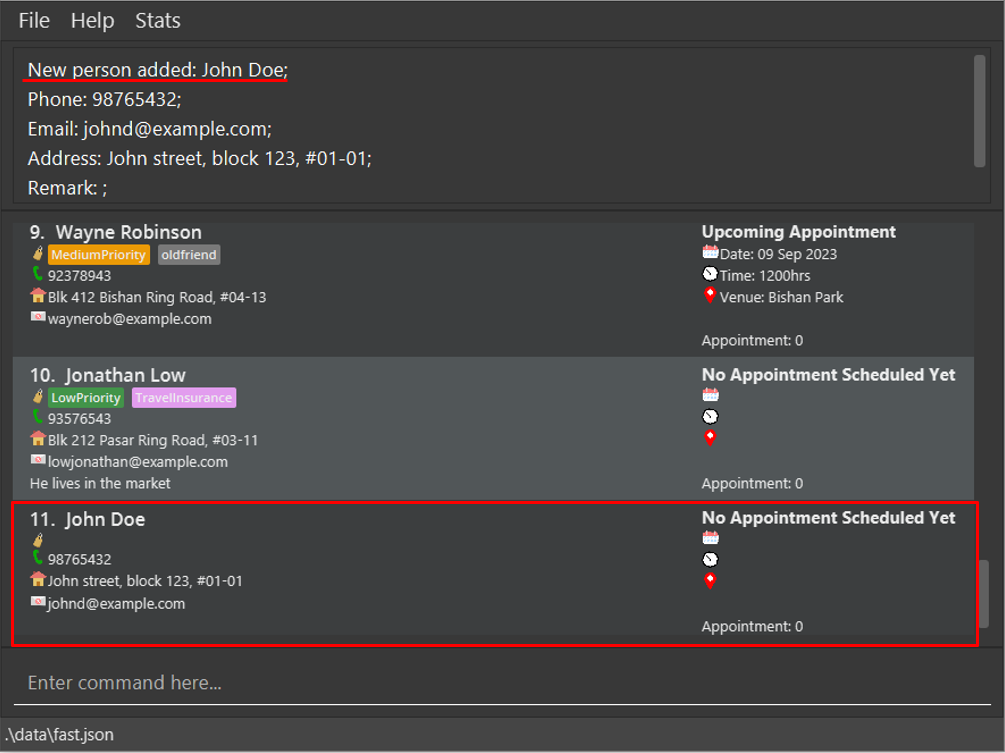
-
add n/Betsy Crowe t/friend e/betsycrowe@example.com a/Newgate Prison p/1234567 t/criminalwill add a new client calledBetsy Crowe, has a phone number of1234567, has an email addressbetsycrowe@example.com, stays atNewgate Prisonand is tagged as both afriendandcriminal.
Editing a client: edit
You can edit an existing client in FAST. This can be used if the client’s information has changed, or if you entered an incorrect entry previously.
Format: edit INDEX [n/NAME] [p/PHONE] [e/EMAIL] [a/ADDRESS] [t/TAG]…
- Edits the client at the specified
INDEX
- Only the edited fields will be updated to the input values, while the unedited values are unchanged.
- You can remove all the client’s tags by typing
t/without specifying any tags after it. - For further information on the type of tags available and how to use them, refer to the Tags section.
Caution:
At least one of the optional fields must be provided. When editing tags, all existing tags of the client will be replaced with the new tags.
Parameters:
Examples:
-
edit 1 p/91234567 e/alexdabro@example.comEdits the phone number and email address of the first client to be91234567andalexdabro@example.comrespectively.
-
edit 2 n/Betsy Crower t/Edits the name of the second client to beBetsy Crowerand clears all existing tags.
Deleting a client: del
You can delete the specified client from FAST. This is useful when a client has stopped using your services.
Format 1: del INDEX [INDEX]...
Format 2: del INDEX-INDEX
- Deletes the client(s) at the specified
INDEX.
Parameters:
Examples:
-
listfollowed bydel 2deletes the second client in FAST. IfBernice Yuis the second client on the list, his entry will be deleted.
-
find Betsyfollowed bydel 1deletes the first client in the results of thefindcommand.
Tip:
Can be used to delete up to 10 contacts in a single del command by supplying more INDEX.
Caution:
If Format 1 is used, there should be a space in between each INDEX if multiple INDEX are input. If Format 2 is used, first
INDEX should not be larger than second INDEX.
-
del 2 4 6 8 10deletes the 2nd, 4th, 6th, 8th and 10th person in FAST. -
del 3-5deletes the 3rd, 4th and 5th person in FAST.
Caution:
This CANNOT be undone!
Adding a remark to your client: rmk
You can add a remark to an existing client in FAST, or update the current remark if they already have one.
This is useful for adding additional client notes such as their preferred meeting timing, allowing you to better serve your clients!
Remarks should be used to annotate contacts with longer and more specific things compared to tags,
which should mostly be one or two words.
Format: rmk INDEX [r/REMARK]
- Adds a remark to the client at the specified
INDEX
Parameter:
Tip:
To delete a remark, leave the remark parameter empty.
Examples:
-
rmk 1 r/loves to eat pizzaadds a remarkloves to eat pizzato the first client.
-
rmk 1removes the remark from the first client.
Tip:
Try to add remarks with specific keywords so that it is easier to search for them.
Caution:
Adding a remark will overwrite any previous remarks that were made for the client!
Appointments
You can also store and keep track of appointments with your clients all within FAST! You may save the date, time and venue of an appointment.
Adding an appointment: aa
You can add a scheduled appointment with the client. An appointment includes a date, time and venue. This allows you to keep track of all your clients’ appointment dates all within the same app. You can also edit, delete, mark as completed, or undo marking of completed appointment for an appointment.
Format: aa INDEX d/DATE [t/TIME] [v/VENUE]
Parameter:

Caution:
The DATE of the appointment must be specified.
Examples:
-
aa 1 d/2022-03-27adds an appointment with date27 Mar 2022to the first client in FAST.
-
aa 3 d/2022-03-27 t/18:00adds an appointment with date27 Mar 2022and time1800hrsto the third client in FAST. -
find Stuart Brownfollowed byaa 3 d/2022-03-27 t/18:00 v/Velocityadds an appointment with date27 Mar 2022, time1800hrsand venueVelocityto the third client in the results of thefindcommand. This command will not work if the client has already been assigned an appointment. You will have to
use the edit appointment command.
Editing an appointment: ea
You can edit a scheduled appointment with your client. This command is useful when your appointment has been rescheduled or has a change in location.
Format: ea INDEX [d/DATE] [t/TIME] [v/VENUE]
- Edits a scheduled appointment with the client at the specified
INDEXif the appointment exist.
Existing details will be updated with the input data.
Caution:
At least one of the optional fields must be present.
Parameter:
Examples:
-
ea 1 d/2022-03-28edits the appointment date to be28 Mar 2022of the first client.
-
ea 3 v/ t/18:00edits the appointment time to be1800hrsand clears the appointment venue of the third client.
Deleting an appointment: da
You can delete a scheduled appointment with your client. This command should be used when the appointment has been cancelled with a client.
Format: da INDEX
- Deletes a scheduled appointment with the client at the specified
INDEXif the appointment exist. - Existing details will be deleted.
Parameter:
Examples:
-
da 1deletes the appointment of the first client.
-
find Benfollowed byda 3deletes the appointment the third client in the result of thefindcommand.
Caution:
This CANNOT be undone!
Updating completed appointment: ma
You can mark the appointment with your client as completed. This also allows you to keep track of the number of completed appointments with your client.
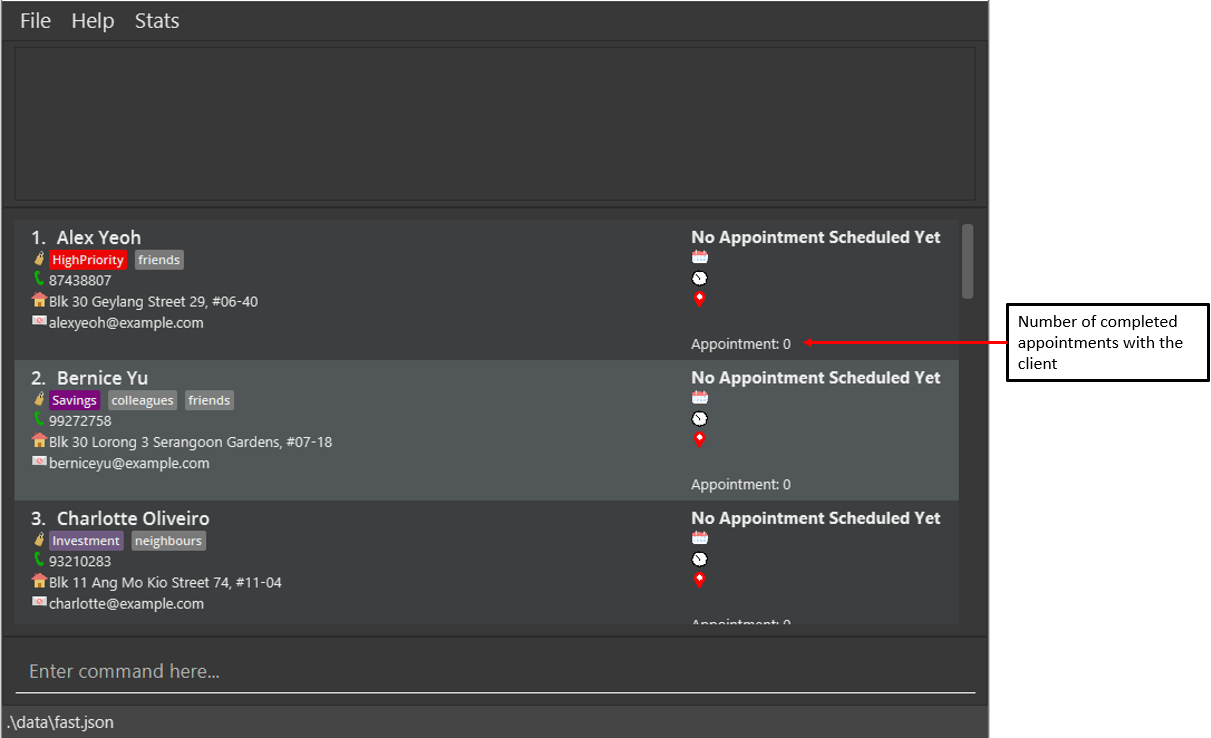
Format: ma INDEX
- Update the completed appointment count with the client at the specified
INDEXif the appointment exist. - The marked appointment will be deleted!
Parameter:
Examples:
-
ma 1updates the completed appointment counter of the first client.

-
find Matthewfollowed byma 3updates the completed appointment counter of the third client in the result of thefindcommand.
Undo marking of completed appointment: ua
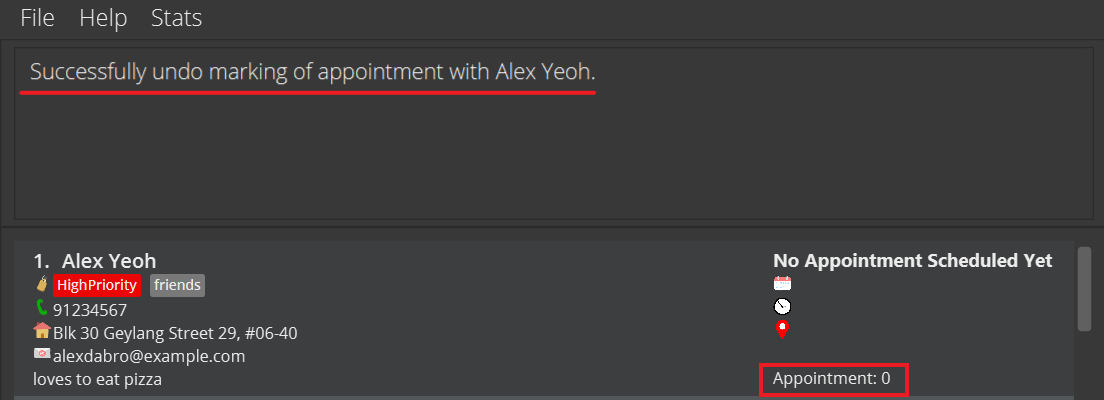
You can reduce the appointment count of your client as needed.
Format: ua INDEX
- Decreases the completed appointment count of the client at the specified
INDEXby 1, if no appointment is currently scheduled with the client. - The current appointment count has to be greater than 0.
Parameter:
Examples:
Before undo:

-
ua 1decreases the completed appointment counter of the first client by 1.
-
find Matthewfollowed byua 3decreases the completed appointment counter of the third client in the result of thefindcommand by 1.
Caution:
This CANNOT be undone!
Tags
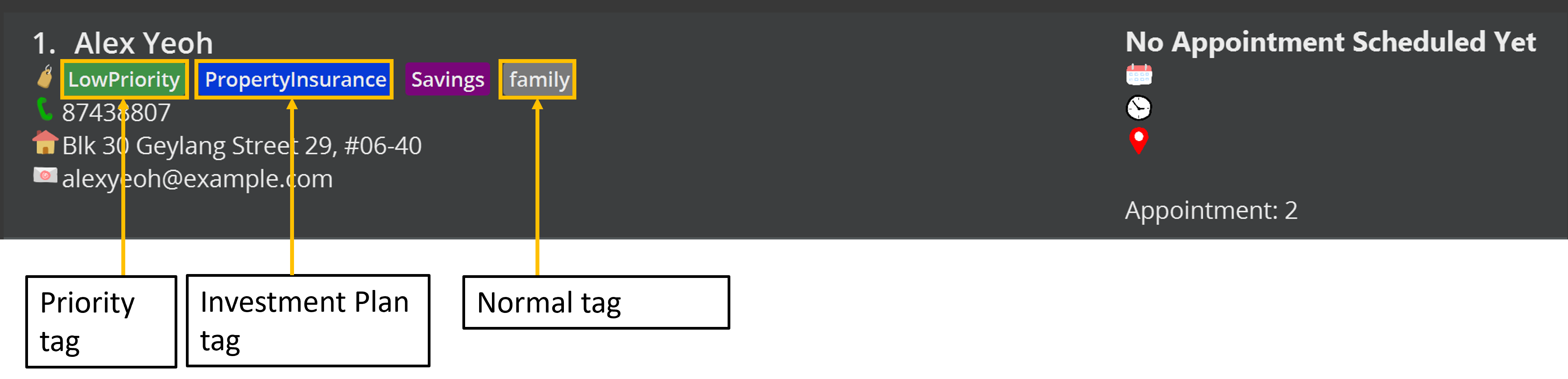
You can use our Tagging system to label and categorise your clients. Tags are a quick way for you to organise your contacts, and recall their key characteristics. In FAST, we have three main types of tags:
-
Normal tags, which you can customise according to your needs.
Tip:
Tags should be used to categorise clients; use short names for normal tags that you may be able to use for other clients as well!
-
Priority tags, which have fixed names and help you to remember which contacts you need to focus on first.
Tip:
A client can only have 1 priority tag , but they can have other non-priority tags alongside the one priority tag.
-
Investment plan tags, which help you recall the plans that each contact has bought.
Tip:
A client can have more than 1 investment plan tag, but they may not have more than 1 of the same investment plan tag.
For example, a client may have both Savings and Investment concurrently, but not 2 instances of Savings at the same time.
Tag Naming Conventions
You can refer to the table below to quickly learn about how to use these three tags.
| Tag type | Prefix | Term |
|---|---|---|
| Normal | No Prefix |
Your preferred tag name, that contains at most 20 alphanumeric characters and no spaces |
| Priority | pr/ |
low: Low Prioritymed:Medium Priorityhigh:High Priority |
| Investment plan | ip/ |
health: Health Insuranceinvest: Investmentlife: Life Insurancemotor: Motor Insuranceproperty: Property Insurance save: Savings travel: Travel Insurance |
In general, append the term to the prefix when referring to a priority or investment plan tag. Normal tags do not have prefixes, so simply type in the desired tag name.
More examples of how to use these will be given in the following section.
Using tags: tag
You can add or delete the tags of a specified client.
Format: tag INDEX [a/TAG] [d/TAG]
- Use
a/to add a tag, andd/to delete a tag. - To add Priority or Investment Plan Tags, remember to add their prefixes!
- Does not affect any unmentioned tags, unlike
edit. - Delete operations are performed first before add operations, regardless of their order in the input.
Parameter:
Examples:
-
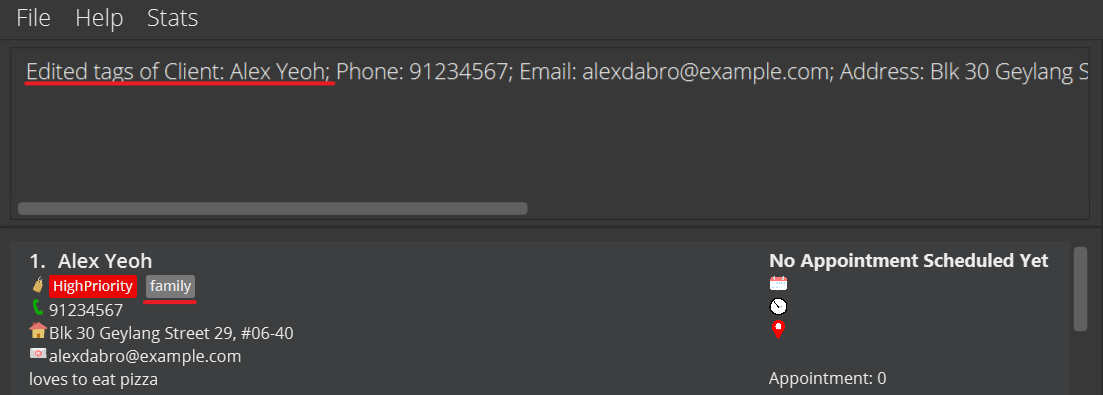
tag 1 a/family d/friendswill delete thefriendstag before adding thefamilytag.
-
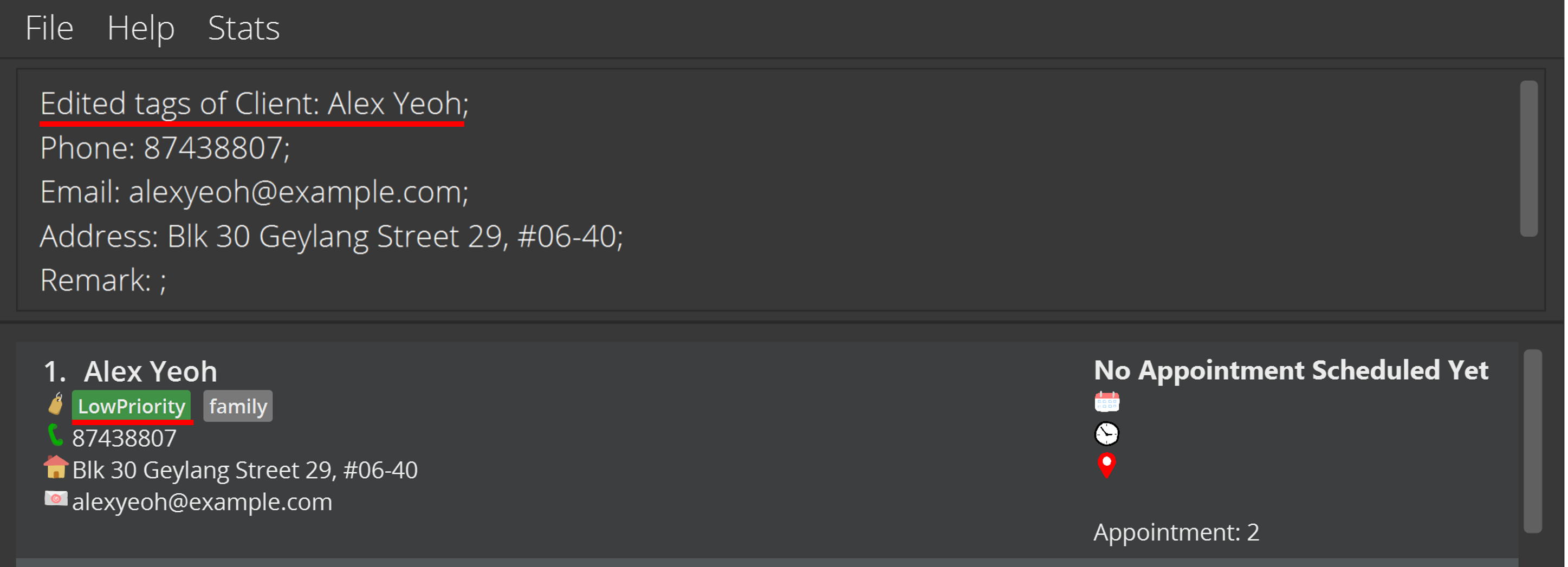
tag 1 d/pr/high a/pr/lowwill delete theHighPrioritytag before adding theLowPrioritytag.
-
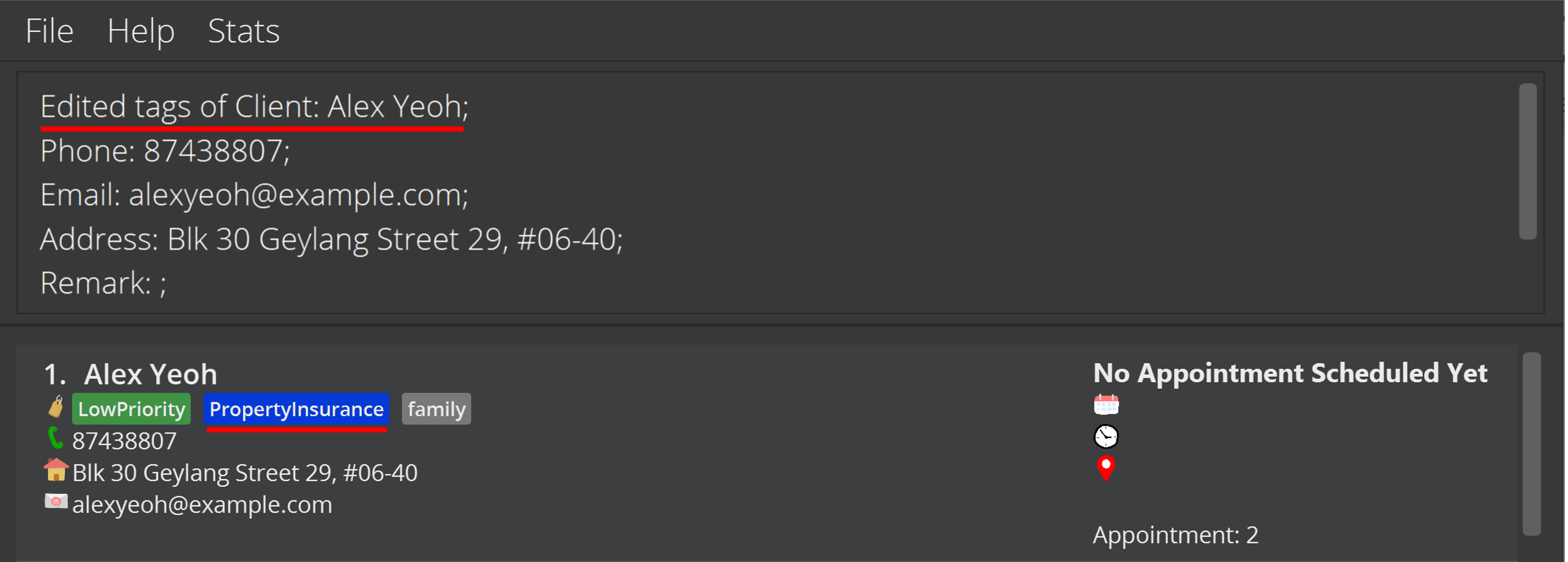
tag 1 a/ip/propertywill add aPropertyInsurancetag to the contact.
Managing your client base
In addition to changing individual client’s details, you can also perform commands which affects your entire client list. This allows you to easily navigate your client list and improve your efficiency!
Listing all clients: list
You can use this command to view your entire client list! This command is especially useful to return to viewing your full client list after a find command has been executed.
Format: list
Sorting all clients: sort
You can sort all your clients by a given condition, allowing you to keep your clients list orderly and well-organised. You also can use this command quickly sieve through large client lists. Currently, you can sort by name, appointment date, and priority tag.
Format: sort KEYWORD
Parameter
Example:
-
sort prioritySorts all existing clients by their priority tag, from the highest priority to the lowest priority.
Searching for clients: find
You can use this command to find clients by their name, priority, tags or remarks. This is useful if your have many clients in FAST and wish to quickly find a specific client. To return to the full client list, you can use the list command
Format 1: find QUERY [MORE_QUERIES]
Format 2: find pr/PRIORITY [MORE_PRIORITIES]
Format 3: find t/TAG [MORE TAGS]
Format 4: find r/REMARK [MORE REMARKS]
- The search is case-insensitive. e.g.
hanswill matchHans - The order of the queries does not matter. e.g.
Hans Bowill matchBo Hans - You can search by name, priority, tags or remarks using the formats shown above.
- Names with words starting with the query will match. e.g.
Hanwill matchSolo Hans. - Any remarks containing the searched remark will match. e.g.
r/pizwill matchlikes pizza. - Clients matching at least one search query will be returned (i.e.
ORsearch). e.g.Hans Bowill returnHans Gruber,Bo Yang
Parameters:
Examples:
-
find JohnreturnsjohnandJohn Doe -
find alex davidreturnsAlex Yeoh,David Li

-
find pr/high medreturns all clients withHighPriorityandMediumPriority. -
find t/friends enemiesreturns all clients tagged withfriendsorenemies. -
find r/goodreturns all clients with remarks containinggood.
Tip:
When searching for remarks, use more specific queries for better results.
Clearing all entries: clear
You can clear all clients from FAST. This command is useful to remove the default sample data in FAST.
Format: clear
Caution:
This CANNOT be undone!
Others
Viewing help: help
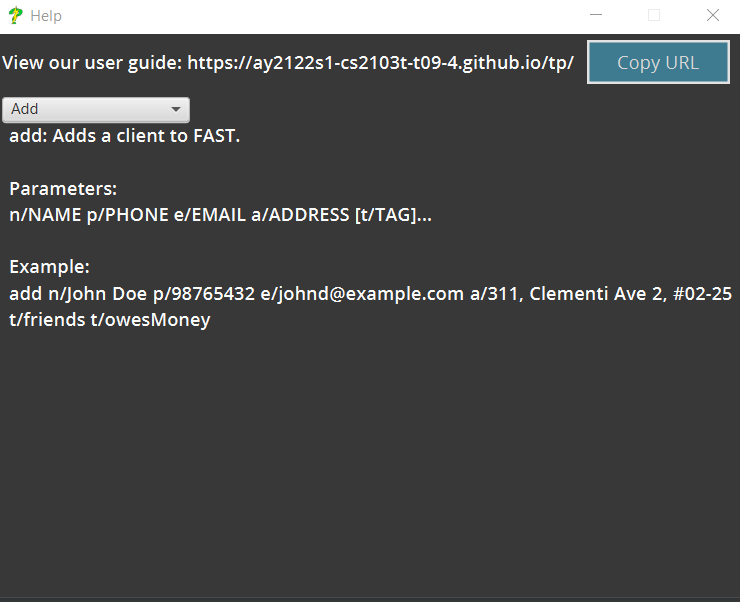
You can use the help command to open a new window that contains the command usage, and a quick start guide.
In the help window, you can view all the command usages built-in right into FAST using the dropdown menu.
Format: help [HELP_TOPIC]
Parameters:
Examples:
-
helpwill just open the default help window -
help addwill open the help window and directly navigate to theAddcommand help page.
Tip:
The help window can also be quickly accessed by entering using the F1 key on your keyboard!
Viewing statistics
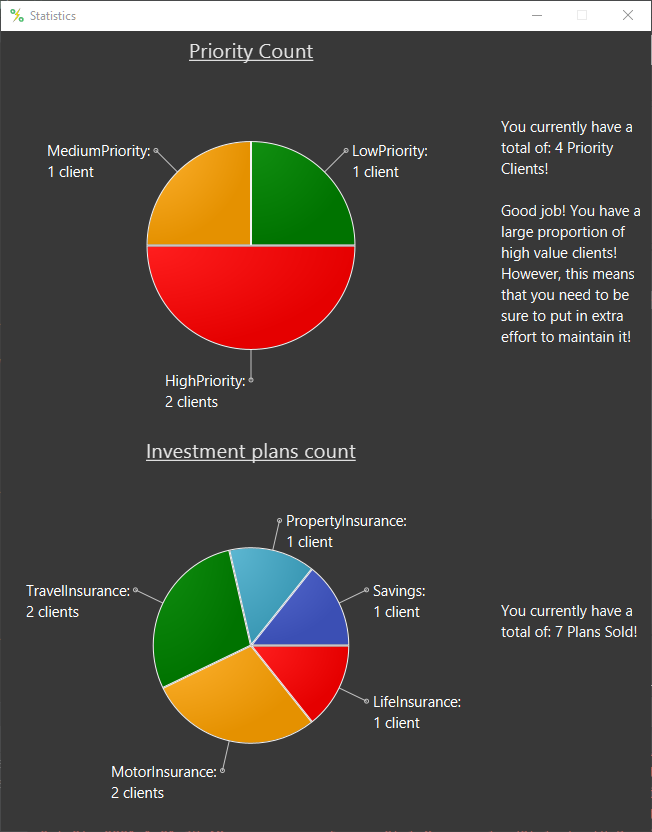
You can view FAST’s built-in statistics and see and overview of your client’s data.
To view the statistics, simply click the “Stats” menu item on the top bar or press F2. You should see a window open
that looks like this:
Currently, FAST supports these statistics:
- Priority Tag Chart: View the breakdown of your client’s priority.
- Insurance Plan Chart: View the distribution of your insurance plans sold.
Exiting the program: exit
You can exit the program using this command.
Format: exit
Saving the data
You do not have to worry about saving the data manually! FAST automatically saves your data after any changes are made. This way, you can focus solely on serving your clients better!
Editing the data file
FAST data is saved as a JSON file.
You can find this at [JAR file location]/data/fast.json.
If you are an advanced user, feel free to update your data directly, by editing that data file.
Caution:
Be extremely careful when making any changes to the data file!If any of your changes to the data file causes FAST to be unable to read the data file, FAST will start with an empty data file on the next run!
FAQs
Q: How do I transfer my data to another Computer?
A: Install the app in the other computer and move your previous FAST data folder into the new FAST home folder. The data folder is shown below.

Q: How do I save my data?
A: You do not need to manually save any data, FAST automatically saves all your data for you when you exit the application.
Q: I edited my data file, and now when I start FAST all my contacts are gone! What happened?
A: It is likely that some of your changes to your data file caused FAST to be unable to read your data file. Double-check the changes you made, or revert them if necessary. If FAST is able to read the data file after you made the changes, all your saved contacts will appear on the next start.
Command summary
The tables below provides you with a summary for all the available commands in FAST. You can use this section to quickly refresh your memory on the different command formats. The commands are categorised (based on their purpose) into 5 different categories:
Contact Management
| Action | Format, Examples |
|---|---|
| Add Contact |
add n/NAME p/PHONE_NUMBER e/EMAIL a/ADDRESS [t/TAG]… e.g. add n/James Ho p/22224444 e/jamesho@example.com a/123, Clementi Rd, 1234665 t/friend t/colleague
|
| Delete Contact |
del INDEX [INDEX]...e.g. del 3 1 del INDEX-INDEX e.g. del 3-5
|
| Edit Contact |
edit INDEX [n/NAME] [p/PHONE_NUMBER] [e/EMAIL] [a/ADDRESS] [t/TAG]…e.g. edit 2 n/James Lee e/jameslee@example.com
|
| Add Remark | rmk INDEX [r/REMARK] |
| Edit Remark |
rmk INDEX r/REMARK OR rmk INDEXe.g. rmk 1 r/likes dogs
|
Appointment Management
| Action | Format, Examples |
|---|---|
| Add appointment |
aa INDEX d/DATE [t/TIME] [v/VENUE]e.g. aa 3 d/2021-03-27 t/18:00 v/Clementi Park |
| Delete Appointment |
da INDEXe.g. da 1 |
| Edit Appointment |
ea INDEX [d/DATE] [t/TIME] [v/VENUE]e.g. ea 3 v/Clementi Town d/2021-03-27 t/18:00 |
| Update Completed Appointment |
ma INDEXe.g. ma 5
|
| Undo Marked Appointment |
ua INDEX e.g. ua 1
|
Tag Management
| Action | Format, Examples |
|---|---|
| Edit Tag |
tag INDEX a/[TAG] d/[TAG] e.g. tag 1 a/friend d/ip/life
|
| Investment Plan Tag | Health Insurance: ip/healthInvestment: ip/investLife Insurance: ip/lifeMotor Insurance: ip/motorProperty Insurance: ip/propertySavings: ip/saveTravel Insurance: ip/travel |
| Priority Tag | Low Priority: pr/lowMedium Priority: pr/medHigh Priority: pr/high
|
Navigation
| Action | Format, Examples |
|---|---|
| Find |
find QUERY [MORE_QUERIES] OR find pr/PRIORITY [MORE_PRIORITIES] OR find t/TAG [MORE TAGS] OR find r/REMARK [MORE REMARKS]e.g. find James Jake
|
| Sort | sort KEYWORD |
| List | list |
Other Commands
| Action | Format, Examples |
|---|---|
| Help |
help [HELP_TOPIC] e.g. help add
|
| Clear | clear |
| Exit | exit |
Glossary
This section serves to provide a summary of descriptions and definitions of terms used throughout this User Guide. Familiarising yourself with this section will make the User Guide easier to read.
| Term | Meaning |
|---|---|
| Graphical User Interface (GUI) | A GUI allows users to use graphics to interact with a device. |
| Command Line Interface (CLI) | A CLI allows users to use commands in the form of text as input to a device. |
| Java | Java is a runtime environment that allows applications such as FAST to be run on your computer. |
| Command | An instruction typed by a user, to be executed by FAST. |
| Parameter | A section of a command that requires user input to be entered. |
| Prefix | An identifier for a parameter to be entered right before the actual parameter of a command. Prefix’s end with a slash (/). |
| Priority | A label applied to clients, indicating the contact’s value to the user. |
| Tag | A label used to describe clients. |